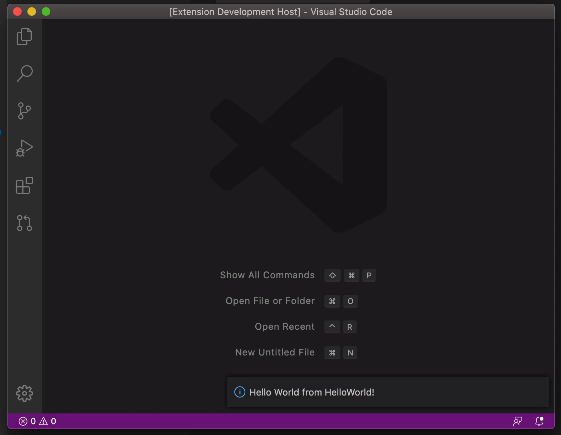
Explains the steps to set up the environment for developing extensions (plugins) in VS Code (Visual Studio Code) text editor, and creating a Hello World app that displays message notifications in JavaScript/TypeScript.
Install nodejs and the dependency git with choco in PowerShell with administrator privileges Then restart the shell.
choco install git -y
choco install nodejs -y
Install yo (yeoman) and generator-code from npm. Yeoman is a tool that generates folders, files, and entire apps according to settings. generator-code is like an extension for yeoman and is automatically associated with yo when installed.
npm install -g yo generator-codeRun the “yo code” command to generate the app. For the second prompt, set the app name to “HelloWorld”. This seems to be a predefined command, and if you change this name, the generated app becomes a normal one and the Hello World functionality won’t work, so be careful.
yo code # or "yo" > "code"
// ? What type of extension do you want to create? New Extension (TypeScript)
// ? What's the name of your extension? HelloWorld
Open the app folder in VS Code.
code ./helloworldVS Code opens in a new window (code ./helloworld simply opens the ./helloworld folder in VS Code),
so run debug execution with F5 there.
This opens another new window. This window becomes the app window.
Open the command palette with ctrl-shift-p in this window, search for “Hello World” and execute it. This executes this sample app, which displays a “Hello world” popup message.