I tried neofetch, which displays Linux system information summary in a clear and easy-to-read format, so I’ll introduce it here.
As you may know, the methods for checking distribution and version vary completely depending on the Linux distribution and version. For example, if you want to check whether the distribution you are currently using is Ubuntu or CentOS, there are specific commands (files) for Ubuntu and specific commands (files) for CentOS.
dylanaraps/neofetch: 🖼️ A command-line system information tool written in bash 3.2+
The has command I introduced some time ago was similar to this, allowing you to easily check versions of packages with different version checking methods.
Installation
Ubuntu 17.04 and up
sudo apt update ; sudo apt install neofetchUbuntu 16.10 and below
# Add PPA
sudo add-apt-repository ppa:dawidd0811/neofetch

# Update repositories
sudo apt update

# Install the package
sudo apt install neofetch
For other distributions, please refer to the following.
Installation · dylanaraps/neofetch Wiki
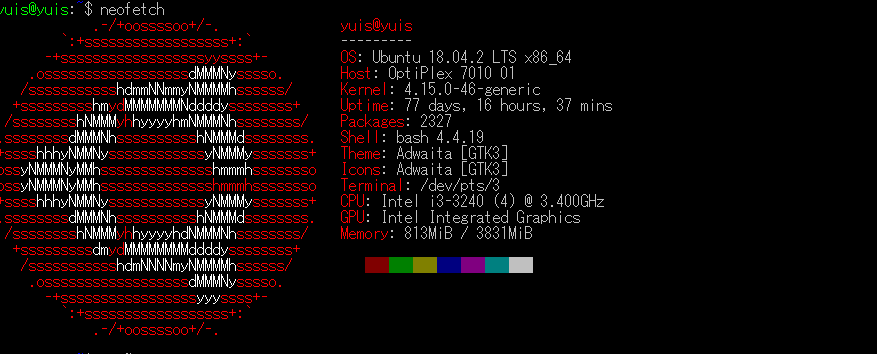
Once installed, running neofetch should display system information like this:
Customization
Neofetch will by default create a config file at $HOME/.config/neofetch/config.conf on first run. This file contains options to control all aspects of the output.
Getting Started · dylanaraps/neofetch Wiki
By customizing the ~/.config/neofetch/config.conf file, you can freely customize the range of system information displayed.
cat ~/.config/neofetch/config.conf | wc
    771    2334   14934
Customizing Info · dylanaraps/neofetch Wiki
In my case, I display everything.
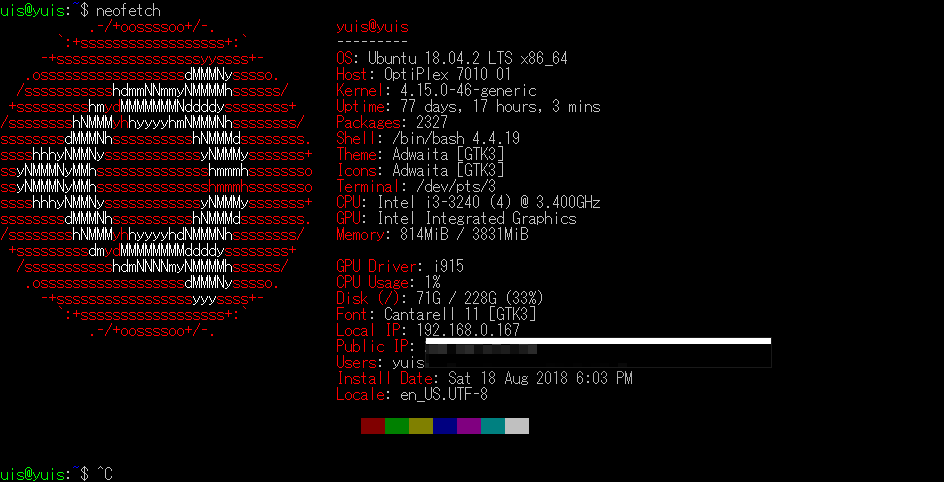
By uncommenting the configuration file as follows, you can display everything:
print_info() {
    info title
    info underline

    info "OS" distro
    info "Host" model
    info "Kernel" kernel
    info "Uptime" uptime
    info "Packages" packages
    info "Shell" shell
    info "Resolution" resolution
    info "DE" de
    info "WM" wm
    info "WM Theme" wm_theme
    info "Theme" theme
    info "Icons" icons
    info "Terminal" term
    info "Terminal Font" term_font
    info "CPU" cpu
    info "GPU" gpu
    info "Memory" memory

    info line_break

    info "GPU Driver" gpu_driver  # Linux/macOS only
    info "CPU Usage" cpu_usage
    info "Disk" disk
    info "Battery" battery
    info "Font" font
    info "Song" song
    info "Local IP" local_ip
    info "Public IP" public_ip
    info "Users" users
    info "Install Date" install_date
    info "Locale" locale  # This only works on glibc systems.

    info line_break
    info cols
    info line_break
}
Conclusion
It’s nice that it displays local IP, public IP, and other information.
By the way, when I tried this on WSL, I couldn’t install it due to the familiar MySQL error. MySQL…