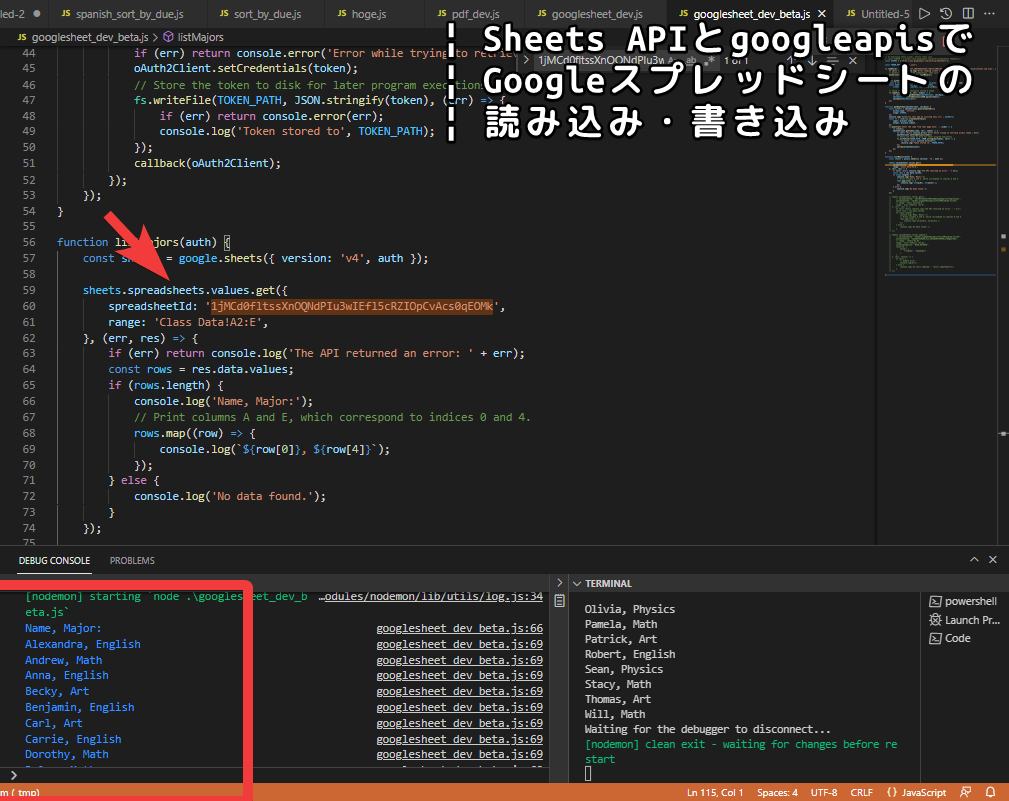
This article introduces how to use Sheets API, which provides API access to Google services, and its library googleapis in node.js to read sheets and cells, write to cells, and update cells in Google Spreadsheets.
Enabling, Creating, and Configuring the Google Sheets API
Before you can manipulate the Sheets API from node.js etc. through credentials JSON files and API keys, you need to enable the Sheets API from your Google account, create a new API key, and configure OAuth.
Create a project if you haven’t already
Note that the following steps reference:
Create a project and enable the API | Google Workspace for Developers
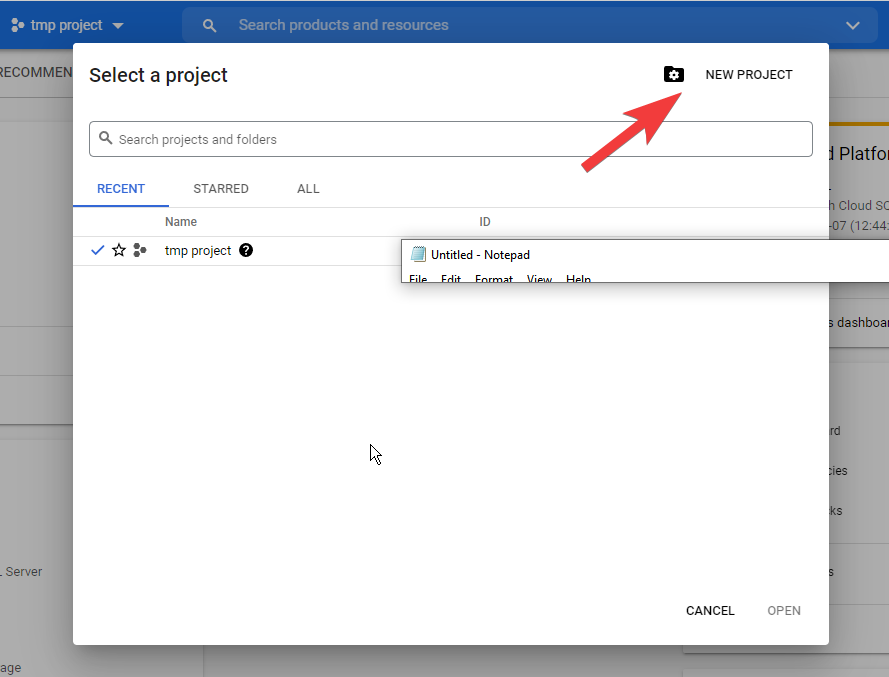
Access Google Cloud Platform (GCP) and select a project.
If a project hasn’t been created yet, create a new one.
Enable Sheets API
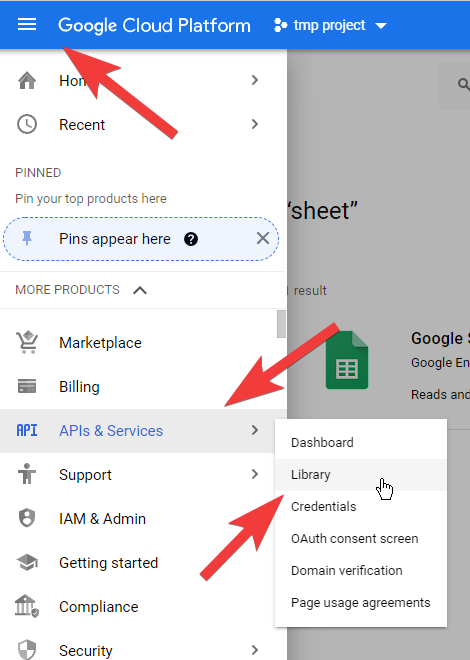
Enable Sheets API in your account. Open the menu on the left side of the screen and go to API and services > library.
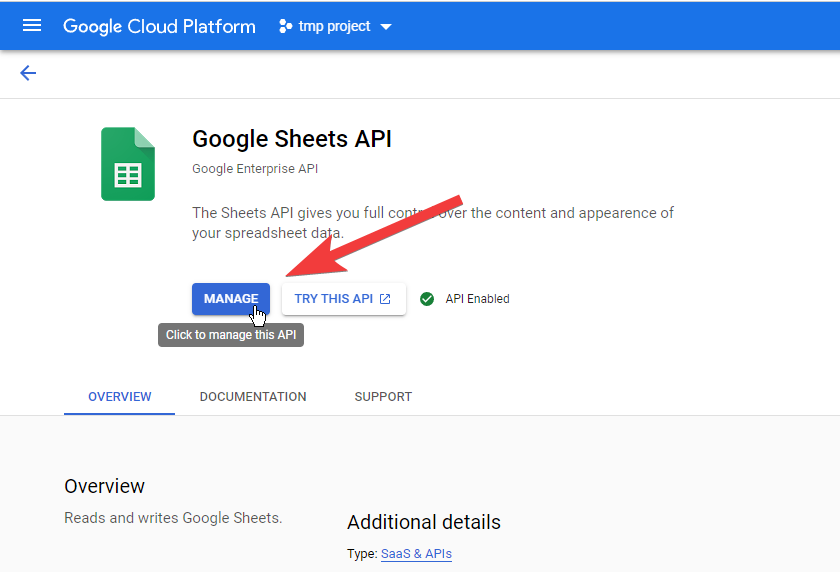
On the next screen, search appropriately for “sheets” etc. to find Google Sheets API. Once found, click on it, proceed, and enable it. In the image below it says “manage”, but if it hasn’t been enabled yet, it should say something like “enable”.
Configure OAuth 2.0
Next, configure OAuth 2.0. By configuring OAuth 2.0, you’ll be able to request API access permission from any or specified Google accounts, including your own. OAuth is the mechanism that links your own, related parties’, or users’ accounts with the API, and we enable and configure that here.
Note that the following steps reference:
Create credentials | Google Workspace for Developers
Open the menu on the left side of the screen and go to API and services > OAuth consent screen.
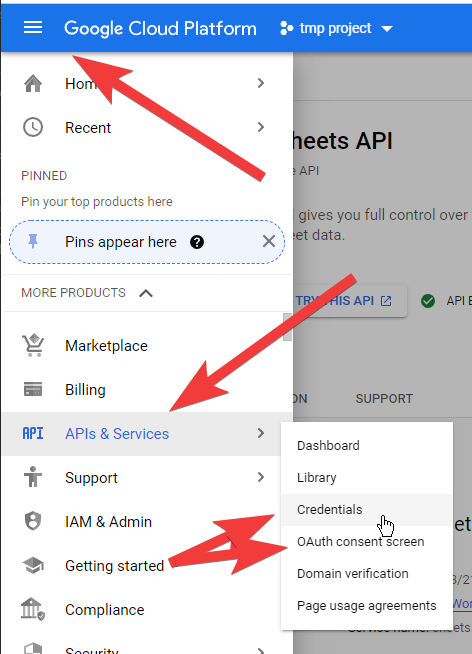
Configure OAuth 2.0.
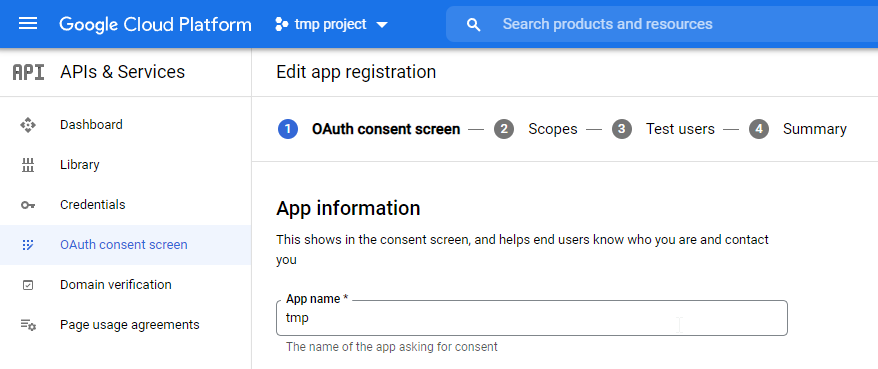
In step 1’s OAuth consent screen, quickly enter app name, email address, etc. as desired.
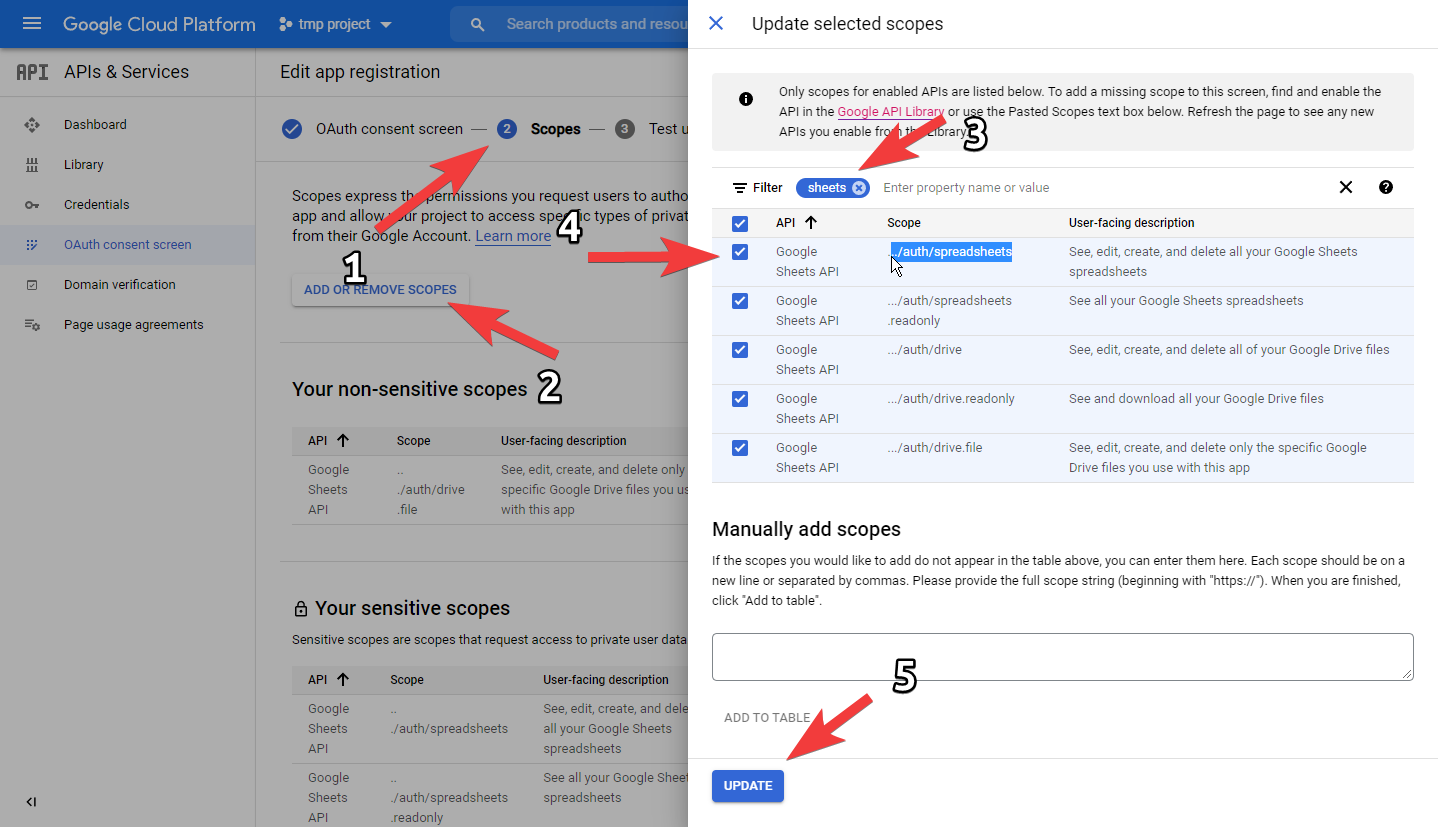
In step 2’s scopes, add /auth/spreadsheets from Google Sheets API.
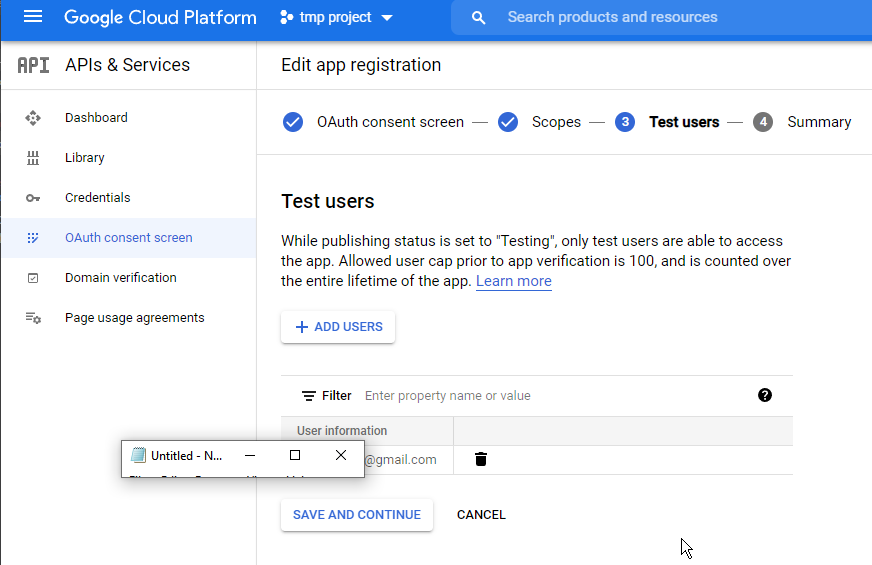
In step 3’s test user addition, add the email address of the Google account you plan to use for testing.
Create OAuth client ID credential
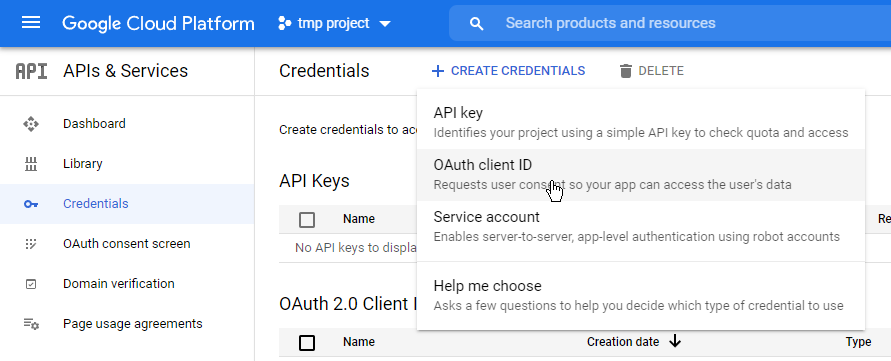
Generate a client ID and API key JSON file for using OAuth in node.js. Create new credentials from the top of the screen on the Credentials page.
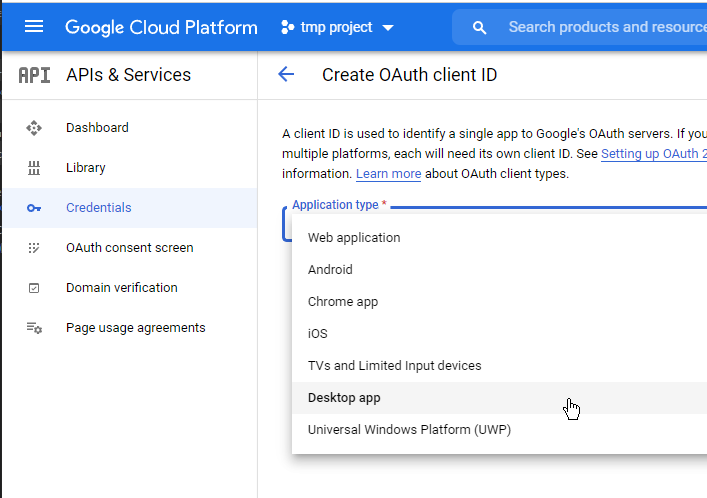
Select desktop app for application type. After creation is complete, save the JSON file. This file will be loaded later in the node.js program.
Running Google Sheets API from googleapis in node.js
Install the googleapis library in node.
npm install googleapis@39 --saveNote that my environment’s node.js and library dependency versions are as follows:
> node -v
v13.10.1
{
"name": "tmp_dev",
"version": "1.0.0",
"description": "",
"main": "tmp_dev.js",
"scripts": {
"test": "echo \"Error: no test specified\" && exit 1"
},
"author": "",
"license": "ISC",
"dependencies": {
"googleapis": "^39.2.0",
}
}Copy and paste the node.js program from Step 2: Set up the sample > sheets/quickstart/index.js on the following page and save it to a file.
Node.js quickstart | Sheets API | Google Developers
Pass the JSON file saved in the above step to node.js. Specify the file path in the “fs.readFile(‘credentials.json’” part.
Run the file with node. A URL will be displayed in the console, so click it and authenticate.
URL example: accounts.google.com/o/oauth2/v2/auth…
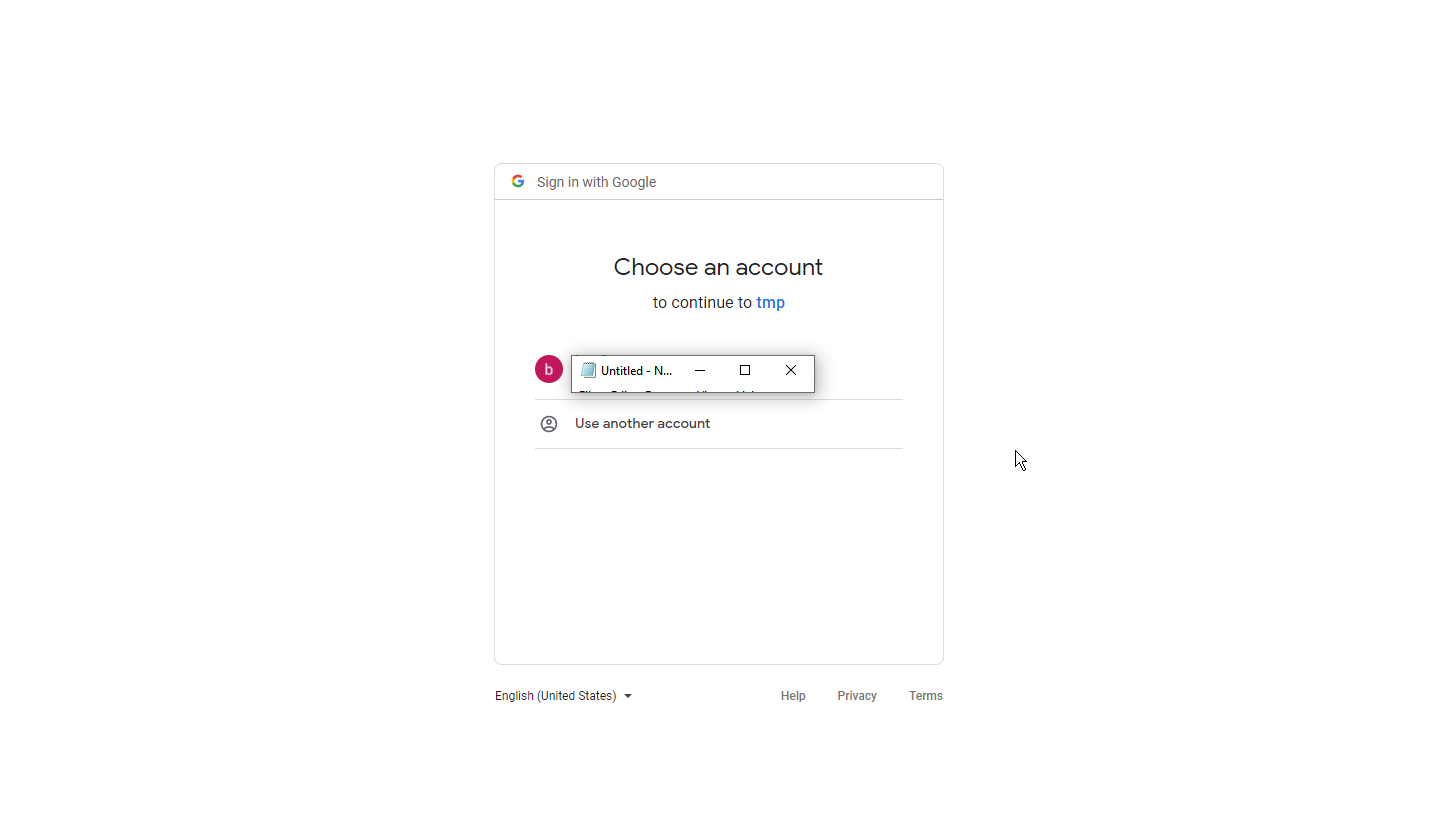
When authentication is complete, the token is cached in the token.json file, and from then on, the program can be run without authentication unless you delete token.json.
If the following output appears in the console, you’ve successfully retrieved spreadsheet cells through the API:
Name, Major:
Alexandra, English
Andrew, Math
Anna, English
Writing to Google Sheets API from googleapis
Above, we performed read operations as per the guide. Below I’ll introduce code for writing and updating (write) sheets.
As sample data, we’ll use Google’s official sample sheet.
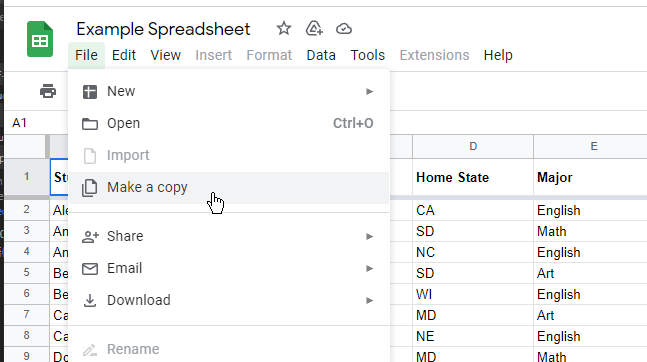
Copy the sheet, save it to your account, and make it editable.
Select the sheet ID of the copied sheet. For example, it will be a combination like the following URL and sheet ID:
URL: https://docs.google.com/spreadsheets/d/1BxiMVs0XRA5nFMdKvBdBZjgmUUqptlbs74OgvE2upms/edit#gid=0
ID: 1BxiMVs0XRA5nFMdKvBdBZjgmUUqptlbs74OgvE2upms
Below I’ll introduce the program as a whole. (Partially quoted) Rewrite the following as appropriate:
sheet_id .. Sheet ID oauth_json .. The OAuth 2.0 client ID API key JSON file saved above (starting with “client_secret_” for example)
const fs = require('fs');
const readline = require('readline');
const { google } = require('googleapis');

// If modifying these scopes, delete token.json.
// const SCOPES = ['https://www.googleapis.com/auth/spreadsheets.readonly'];
const SCOPES = ['https://www.googleapis.com/auth/spreadsheets'];

const TOKEN_PATH = 'token.json';

fs.readFile(<<oauth_json>>, (err, content) => {
    if (err) return console.log('Error loading client secret file:', err);
    // Authorize a client with credentials, then call the Google Sheets API.
    authorize(JSON.parse(content), main);
});

function authorize(credentials, callback) {
    const { client_secret, client_id, redirect_uris } = credentials.installed;
    const oAuth2Client = new google.auth.OAuth2(
        client_id, client_secret, redirect_uris[0]);

    // Check if we have previously stored a token.
    fs.readFile(TOKEN_PATH, (err, token) => {
        if (err) return getNewToken(oAuth2Client, callback);
        oAuth2Client.setCredentials(JSON.parse(token));
        callback(oAuth2Client);
    });
}

function getNewToken(oAuth2Client, callback) {
    const authUrl = oAuth2Client.generateAuthUrl({
        access_type: 'offline',
        scope: SCOPES,
    });
    console.log('Authorize this app by visiting this url:', authUrl);
    const rl = readline.createInterface({
        input: process.stdin,
        output: process.stdout,
    });
    rl.question('Enter the code from that page here: ', (code) => {
        rl.close();
        oAuth2Client.getToken(code, (err, token) => {
            if (err) return console.error('Error while trying to retrieve access token', err);
            oAuth2Client.setCredentials(token);
            // Store the token to disk for later program executions
            fs.writeFile(TOKEN_PATH, JSON.stringify(token), (err) => {
                if (err) return console.error(err);
                console.log('Token stored to', TOKEN_PATH);
            });
            callback(oAuth2Client);
        });
    });
}

function main(auth) {
    const sheets = google.sheets({ version: 'v4', auth });

    sheets.spreadsheets.values.update({
        spreadsheetId: <<sheet_id>>,
        range: 'Class Data!B2:C3',
        valueInputOption: "USER_ENTERED",
        resource: {
            values: [
                ["hoge", "hogehoge"],
                ["fuga", "fugafuga"]
            ]
        }
    }, (err, result) => {
        if (err) {
            // Handle error
            console.log(err);
        } else {
            console.log('%d cells updated.', result.updatedCells);
        }
    });

}
What I particularly want you to pay attention to in the above code is:
const SCOPES = ['https://www.googleapis.com/auth/spreadsheets']; Google’s official guide above specifies:
const SCOPES = ['https://www.googleapis.com/auth/spreadsheets.readonly'];which is a scope with only read permissions. In this state, you’ll get permission errors like those introduced below, so if you’re doing write/update work, you must change this to the above.
Note that the scope also needs to have auth/spreadsheets added as per the steps above. Also, it might be safe to reissue the OAuth key after changing the scope.
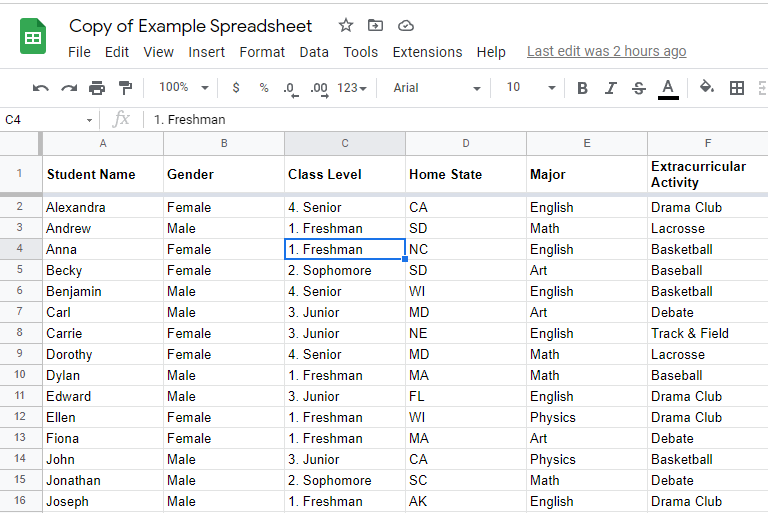
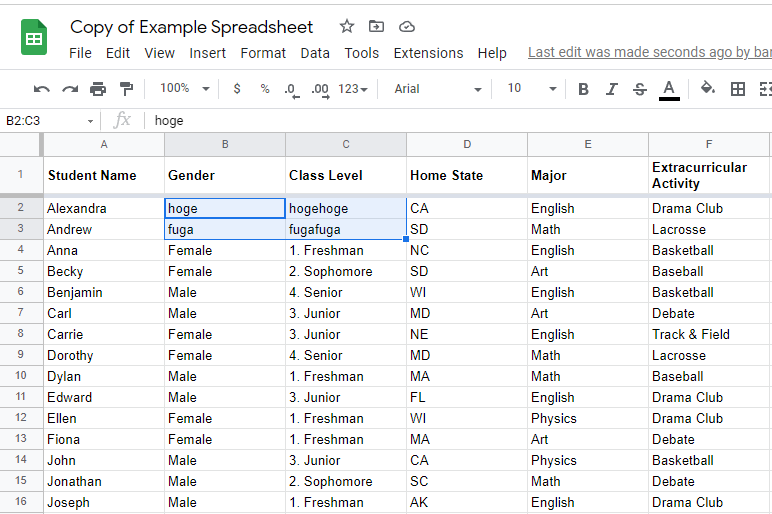
In the above code, we’re passing a multidimensional array [[“hoge”, “hogehoge”],[“fuga”, “fugafuga”]] to the 2x2 four cells of “B2:C3” in the “Class Data” sheet, updating each cell to those values.
By running the above code with node, a spreadsheet like (1) below will be updated to (2) below.
(Before change)
(After change)
Error: Error: Insufficient Permission (googleapis)
Below, I’ll introduce common errors.
The following error may occur when running with googleapis:
Error: Insufficient PermissionThis error mainly occurs when scope addition and configuration are not done correctly as above, or when the permission passed to the SCOPES constant in the code (oAuth2Client.generateAuthUrl -> scope) is inappropriate.
According to Stack Overflow, since the scope URL is included in the URL during OAuth URL authentication, it’s suggested to use this as a final check.
Visiting https://www.googleapis.com/oauth2/v1/tokeninfo?access_token=xxxxxx is a good way to verify [curl - Why is Google Calendar API (oauth2) responding with 'Insufficient Permission'? - Stack Overflow](https://stackoverflow.com/questions/16970917/why-is-google-calendar-api-oauth2-responding-with-insufficient-permission)References:
python - Google API (Sheets) API Error code 403. Insufficient Permission: Request had insufficient authentication scopes - Stack Overflow curl - Why is Google Calendar API (oauth2) responding with ‘Insufficient Permission’? - Stack Overflow javascript - Google Cloud OAuth2 scopes not updating - Stack Overflow
References
Below I’ll introduce other references for using Google Sheets API in node.js.
Sheets API samples:
Basic Writing | Sheets API | Google Developers
Sheets API guide (node.js, javascript, python, php, java, ruby etc.):
Reading & Writing Cell Values | Sheets API | Google Developers
Node.js reference in googleapis:
Method: spreadsheets.values.get | Sheets API | Google Developers googleapis documentation
Scopes in Google Sheets API:
Authorize Requests | Sheets API | Google Developers
For using Sheets API from curl etc.:
Basic Reading | Sheets API | Google Developers Basic Writing | Sheets API | Google Developers
Using node-google-spreadsheet
In the introduction above, we used googleapis, officially provided by Google, as the Sheets API library for node.js, but there are other third-party libraries. One of them is node-google-spreadsheet.
Github:
theoephraim/node-google-spreadsheet: Google Sheets API (v4) wrapper for Node.js
I touched on node-google-spreadsheet a bit before using googleapis, but while I could read, I stumbled with writing.
Since I don’t have much time, I moved to using googleapis, but below I’ll introduce the environment setup and API addition procedure for using node-google-spreadsheet, references for node-google-spreadsheet, and a sample program example for reading sheets.
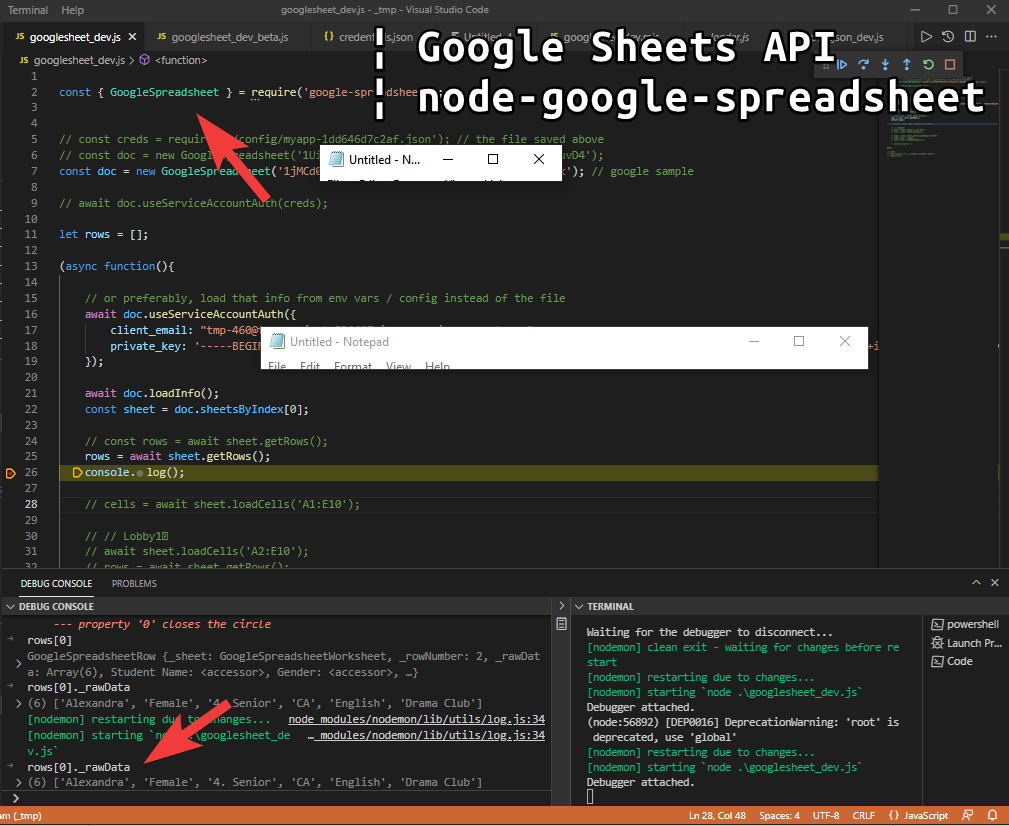
First create a directory and package.json with npm init, and install node-google-spreadsheet.
npm i google-spreadsheetNote that my environment’s node.js and library dependency versions are as follows:
> node -v
v13.10.1
{
"name": "tmp_dev",
"version": "1.0.0",
"description": "",
"main": "tmp_dev.js",
"scripts": {
"test": "echo \"Error: no test specified\" && exit 1"
},
"author": "",
"license": "ISC",
"dependencies": {
"google-spreadsheet": "^3.2.0",
"googleapis": "^39.2.0",
}
}Create a service account. Save the JSON file.
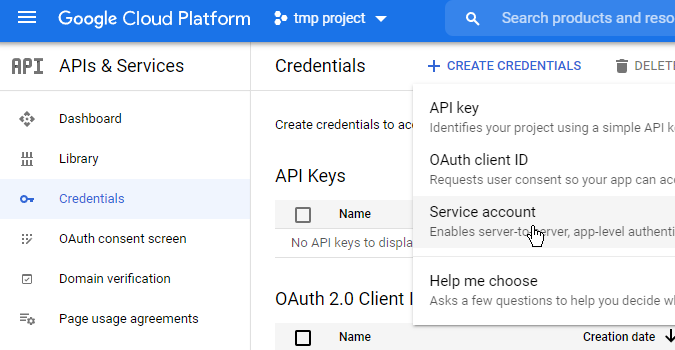
Below is a sample program.
Rewrite the following as appropriate and run:
sheet_id .. Spreadsheet ID; example: 1jMCd0flts.. client_email .. client_email property of the saved JSON file private_key .. private_key property of the saved JSON file
const { GoogleSpreadsheet } = require('google-spreadsheet');

const doc = new GoogleSpreadsheet('<<sheet_id>>');

let rows = [];

(async function(){

    await doc.useServiceAccountAuth({
        client_email: <<client_email>>,
        private_key: <<private_key>>,
    });

    await doc.loadInfo();
    const sheet = doc.sheetsByIndex[0];

    rows = await sheet.getRows();

    console.log(rows);
})();
References:
Authentication Overview GoogleSpreadsheetRow GoogleSpreadsheetCell