This article introduces how to handle the remote: Support for password authentication was removed・fatal: Authentication failed error when trying to push a repository to a remote like GitHub using git. The latter part also covers how to create an access token on GitHub.
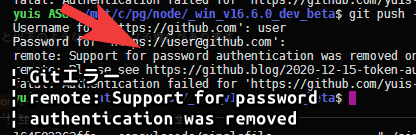
When performing git push in a git project, you may encounter the following error.
$ git push -u origin main
remote: Support for password authentication was removed on August 13, 2021. Please use a personal access token instead.
remote: Please see https://github.blog/2020-12-15-token-authentication-requirements-for-git-operations/ for more information.
fatal: Authentication failed for 'https://github.com/user/repo.git/'
As the error message indicates, when performing git push and similar operations, while plain password strings were entered before, the authentication method changed to token-based authentication in late 2021.
The main cause of this error, as described above, is when entering the old password or the password used to log into GitHub at the password prompt where a token should be entered, or when such a password is cached.
The following introduces the procedure for creating an access token on GitHub.
Navigate to the following page.
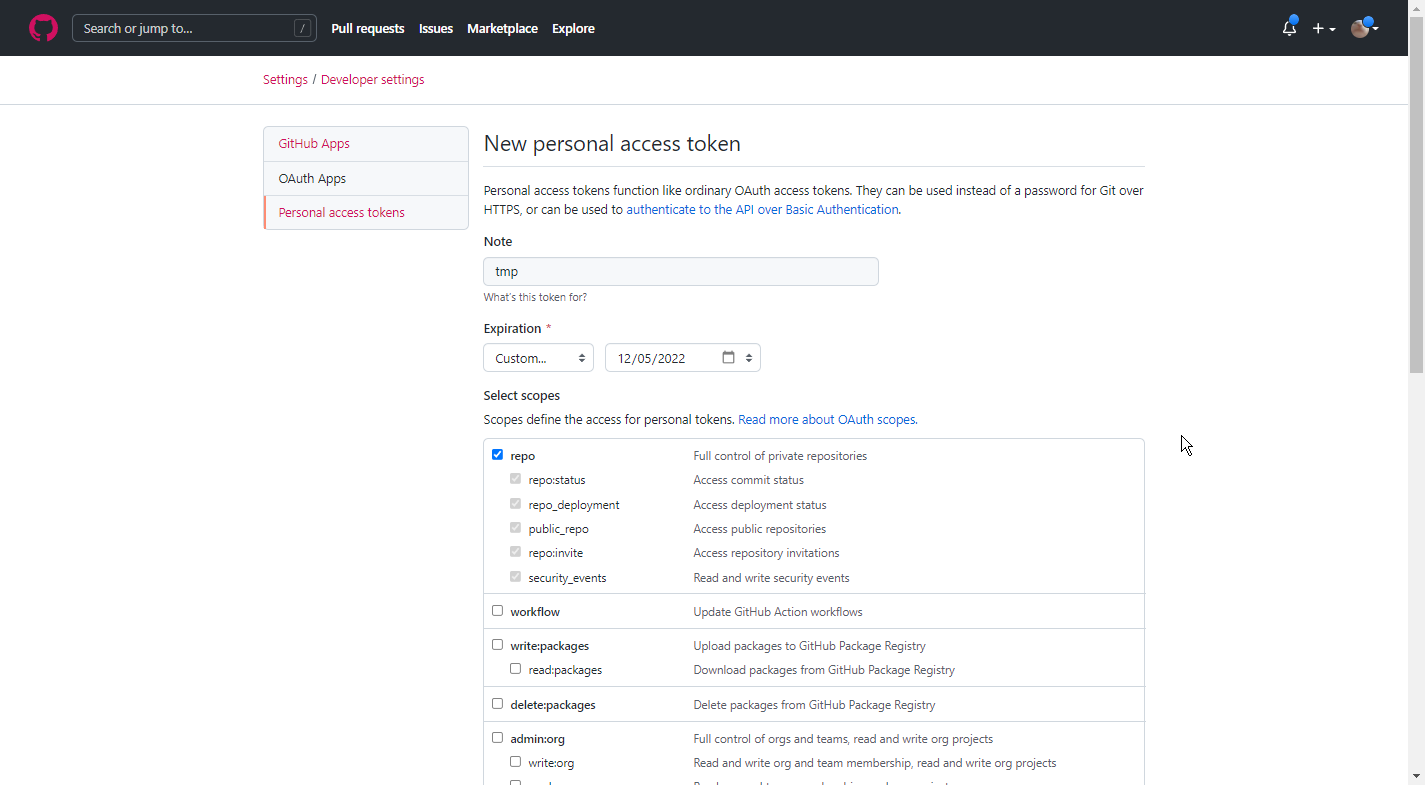
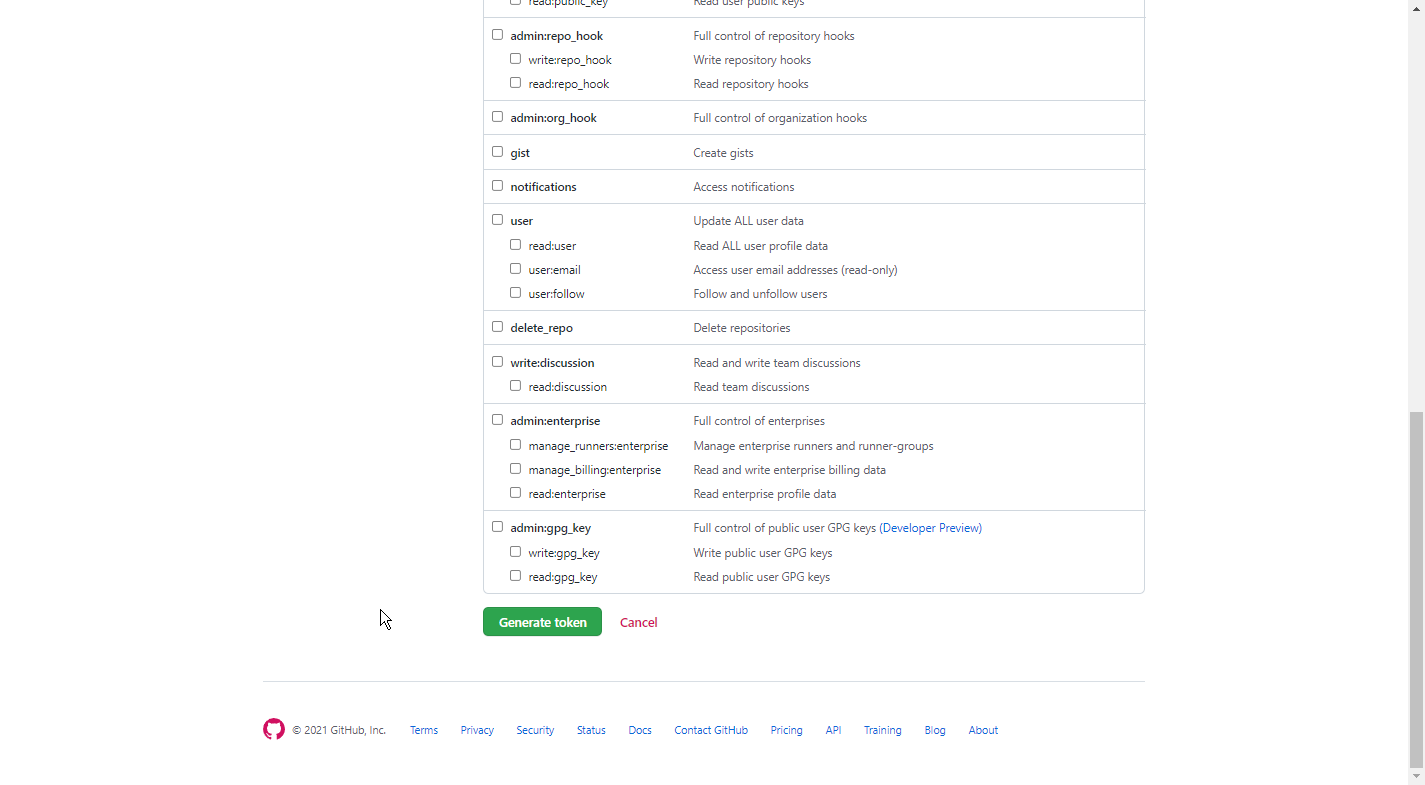
Go to “Personal access tokens” and click generate new token Select the necessary permissions and complete the creation. In my case, I clicked repo (repository) to enable repository-related work including git push.
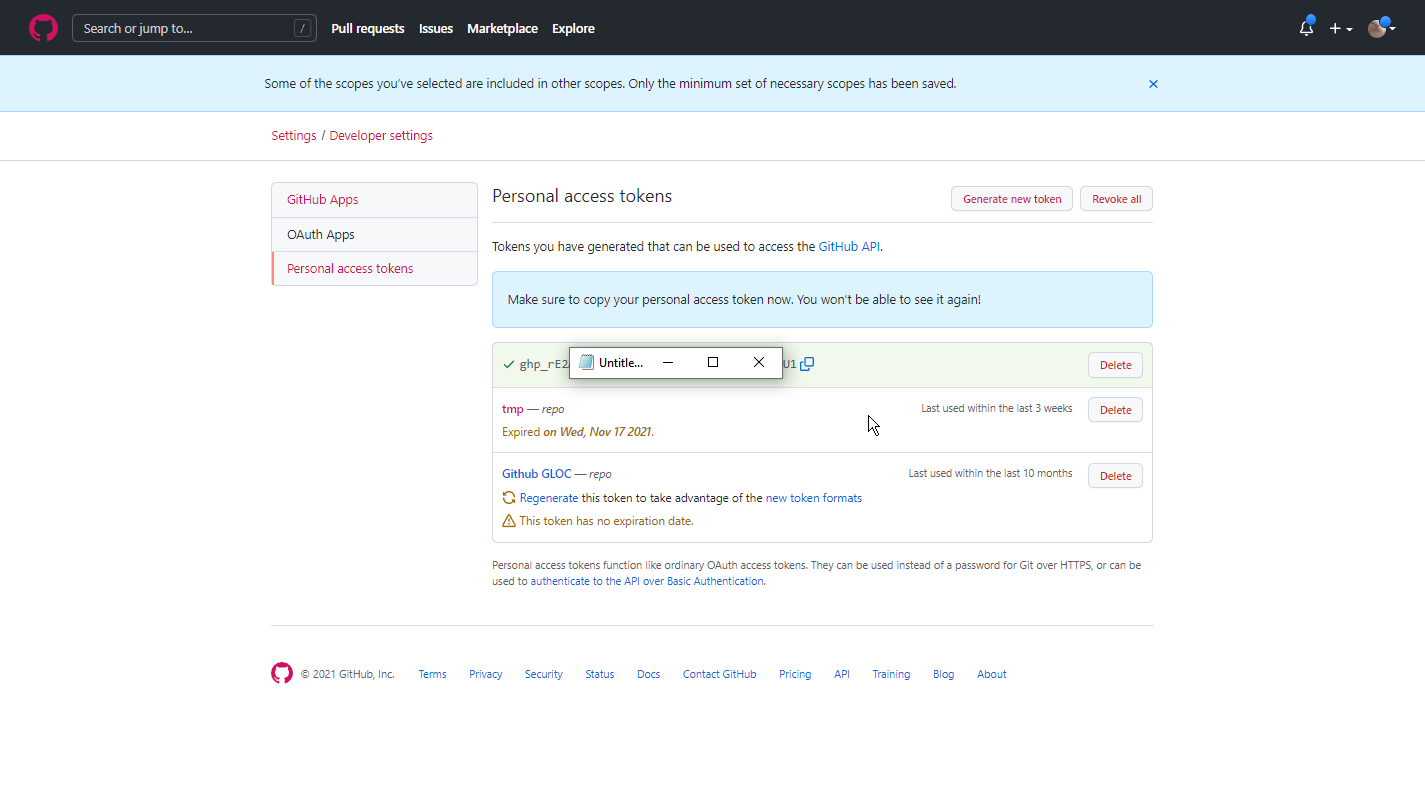
When the access token creation is complete, you’ll be taken to a page like the following. The string starting with “ghp_” is the token. Copy and paste this as the password when prompted for password during git push to GitHub, instead of your GitHub password.
Without any configuration, you’ll be required to enter the password (access token) every time you git push. This reduces work efficiency, so cache or save the access token to a file for a certain period as follows.
- The former cache method is safer, but the latter file storage method is more insecure. Specifically, for example, malicious Node.js npm modules/libraries might be able to access the access token.
To save to cache:
In the following command example, the timeout is set to 3600 seconds, one hour. This means that after entering the access token on the first git push and it’s cached, you can git push and use git commands for one hour without re-entering the access token.
git config --global credential.helper 'cache --timeout=3600'To save to file
git config --global credential.helper 'store'When saved to file, unless settings are changed, the token data is saved to the following file path.
~/.git-credentialsYou can output the saved token data with the following command.
cat ~/.git-credentialsReference: