Fellow traders, you’re undoubtedly using indicators on TradingView. The numerical data from these can be checked from the “Data Window” in the right sidebar menu.
In algo trading (system trading), there are broadly two ways to utilize TradingView:
-
Complete buy/sell decision-making with Pine Script on TradingView.
Write algorithms to generate buy and sell signals, then send webhook requests to place orders when values appear.
-
Separate TradingView’s Pine Script from the buy/sell decision-making algorithm.
Limit TradingView’s use to creating, rendering, and charting indicators, while making buy/sell decisions in a separate program based on the data obtained from it.
This tool is useful when taking the latter approach.
Below shows this tool logging data retrieved from TradingView’s Data Window.
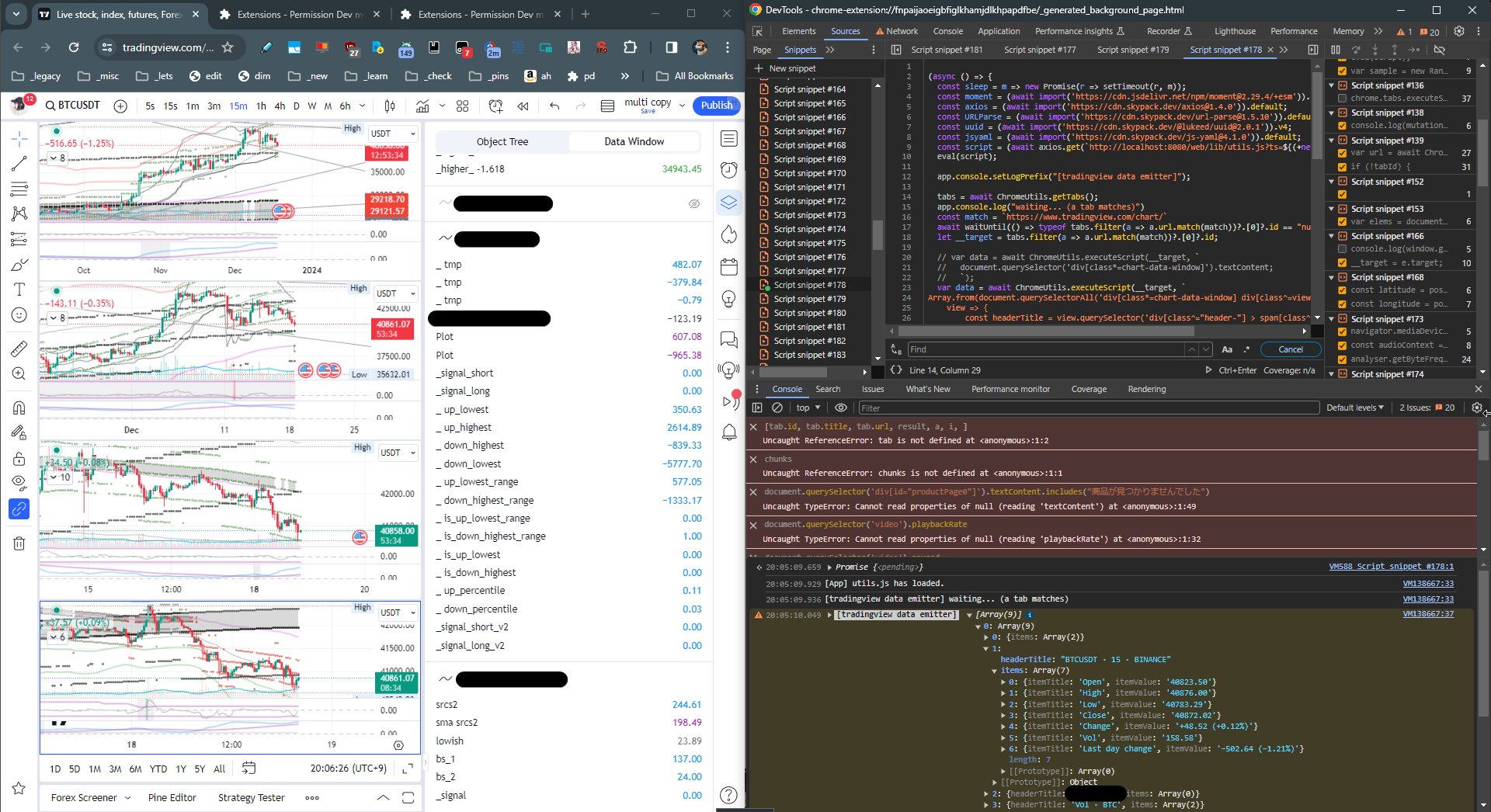
The above screenshot only shows logging, but this tool actually has functionality to save data to a database.
It might be more accurate to call it a tool chain, or system, rather than just a tool.
This tool has the following configuration:
-
Chrome Extension
Retrieves (scrapes) data from TradingView’s Data Window and sends it to a web server
-
Web Server
Receives data sent from the Chrome extension and saves it to a database (mongodb)
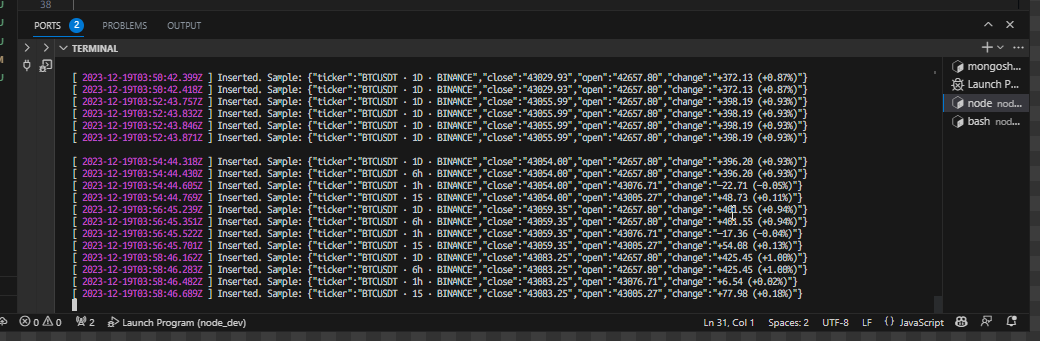
Furthermore, in my setup, two more tools are included in the system configuration. This allows for complete construction of an algo trading system.
-
Algorithm Program
Retrieves data from the database and makes buy/sell decisions. This is done manually, semi-automatically (execution under conditions, delayed execution, etc.), or automatically.
-
Web Server (Trading Server)
Receives requests from the algorithm program and places orders. This manages positions.
Below is part of the code for this tool’s Chrome extension.
/**
 * tradingview data emitter
 */

(async () => {
  const sleep = m => new Promise(r => setTimeout(r, m));
  const moment = (await import('https://cdn.jsdelivr.net/npm/moment@2.29.4/+esm')).default;
  const axios = (await import('https://cdn.skypack.dev/axios@1.4.0')).default;
  const URLParse = (await import('https://cdn.skypack.dev/url-parse@1.5.10')).default;
  const uuid = (await import('https://cdn.skypack.dev/@lukeed/uuid@2.0.1')).v4;
  const jsyaml = (await import('https://cdn.skypack.dev/js-yaml@4.1.0')).default;
  const script = (await axios.get(`http://localhost:8080/web/lib/utils.js?ts=${(+new Date())}`)).data;
  eval(script);

  app.console.setLogPrefix("[tradingview data emitter]");

  tabs = await ChromeUtils.getTabs();
  app.console.log("waiting... (a tab matches)")
  const match = `https://www.tradingview.com/chart/`
  await waitUntil(() => typeof tabs.filter(a => a.url.match(match))?.[0]?.id == "number");
  let __target = tabs.filter(a => a.url.match(match))?.[0]?.id;

  const code = `
Array.from(document.querySelectorAll('div[class*=chart-data-window] div[class^=view-]')).map(
    view => {
        const headerTitle = view.querySelector('div[class^="header-"] > span[class^=headerTitle]')?.textContent

// (continued)
The overall framework of this tool and system is as described above.
This concludes the introduction of the tool.