Introducing Jupyter Notebook, an interactive web-based program execution environment that plays an important role in programming learning, tutorial creation, note-taking, and more.
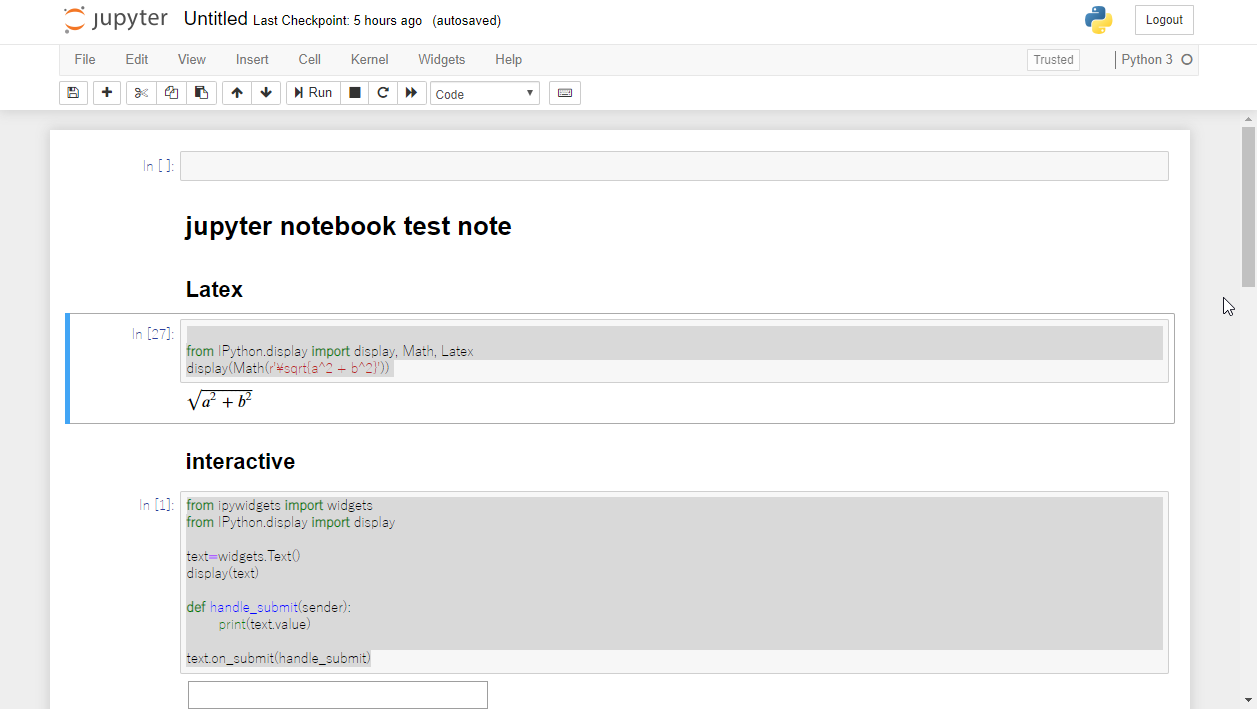
“Jupyter Notebook” is a note-taking tool that can be edited and viewed from a browser. It can display execution results of Python, Bash, and other languages as notes, and can also render Python graphs and Latex. In essence, it’s like Evernote where you can use Markdown, Latex, and programming languages together. Additionally, using a feature called widgets, you can create interactive elements that respond to user input, among various other functions.
Official tutorial guide: Jupyter Notebook Tutorial: Definitive Guide (article) - DataCamp
Github repository: Topic: jupyter-notebook
Installing and Launching Jupyter Notebook
python3 -m pip install --upgrade pip
python3 -m pip install jupyter

jupyter notebook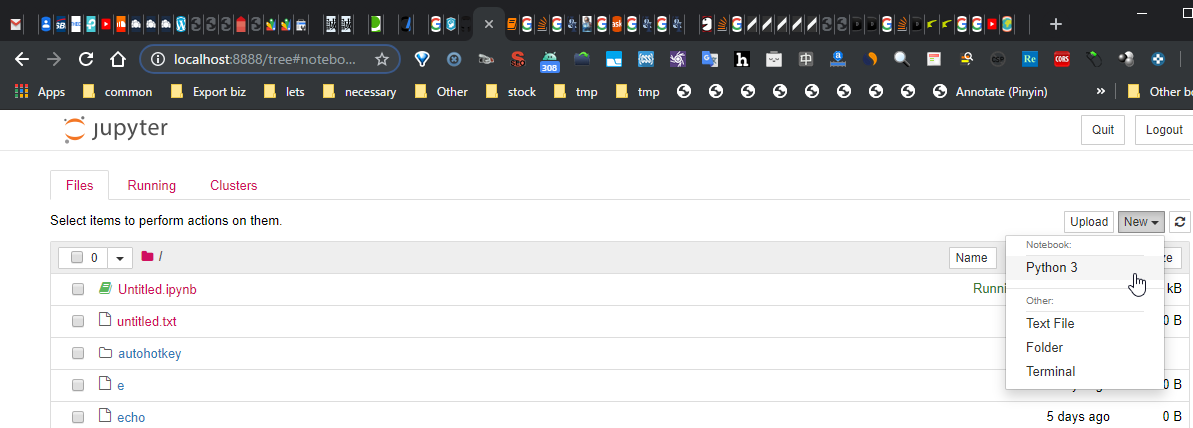
Once you open the URL with the token in your browser, select Python3 from the New button to create a new notebook.
Execute Python

from IPython.display import display, Math, Latex
display(Math(r'\sqrt{a^2 + b^2}'))
Write Markdown
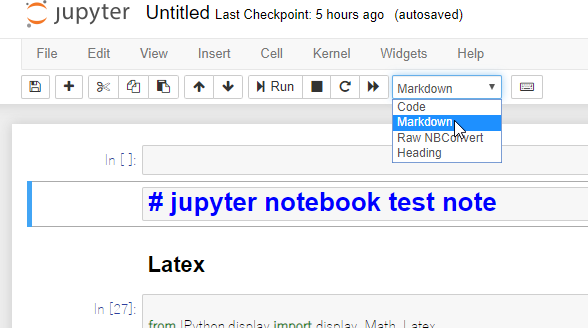
If you want to write Markdown, select Markdown from the select box in the top bar.
Execute Bash etc.
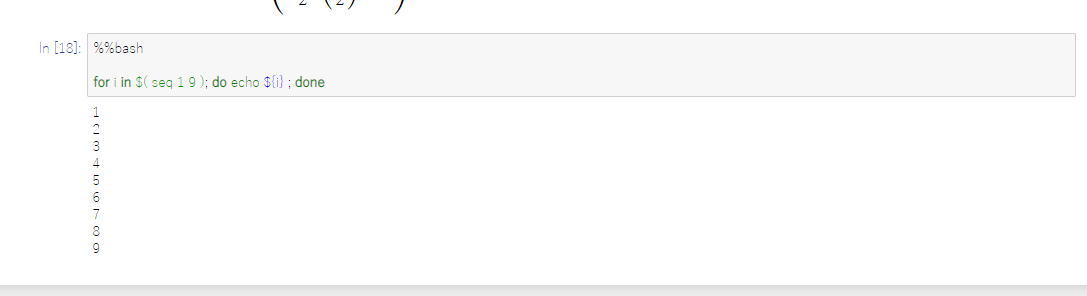
%%bash

for i in $( seq 1 9 ); do echo ${i} ; done
For latex, here’s how:
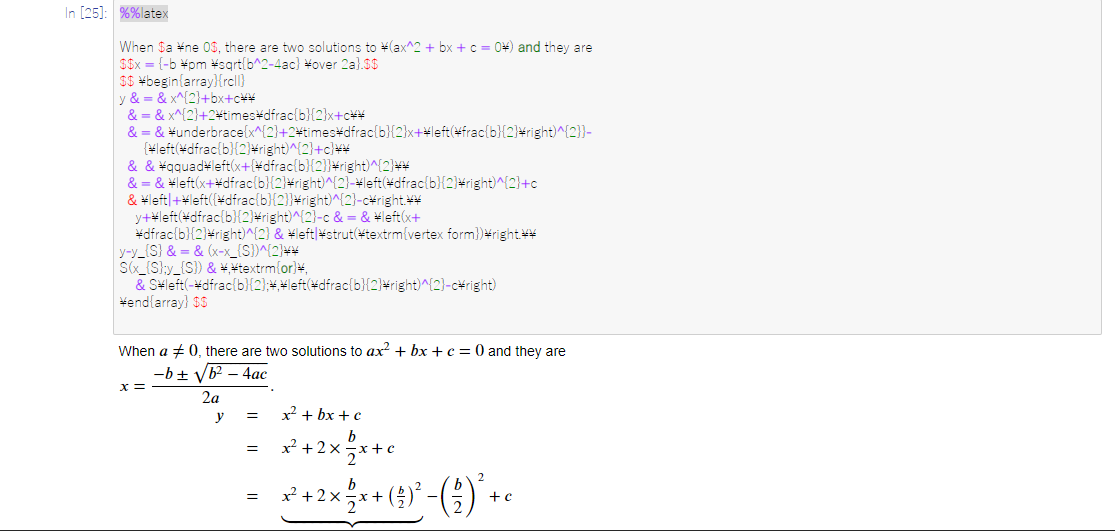
%%latexImplementing Interactive Input Boxes
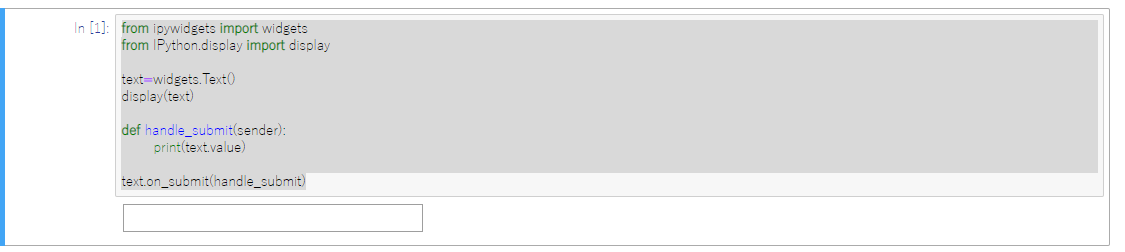
from ipywidgets import widgets
from IPython.display import display

text=widgets.Text()
display(text)

def handle_submit(sender):
        print(text.value)

text.on_submit(handle_submit)
Export and Share
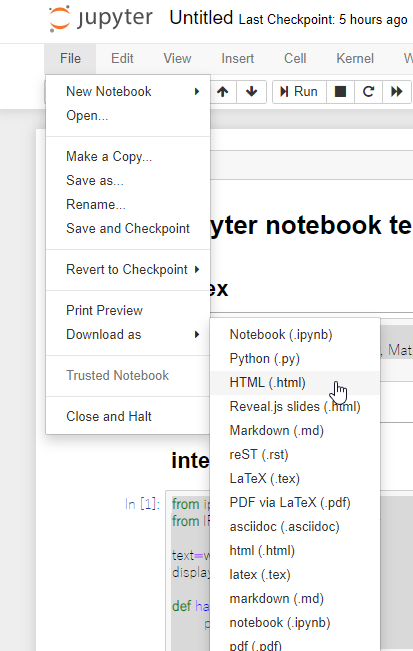
Created notebooks can be exported in HTML or ipynb format. When exporting to static types like HTML, interactive input boxes will no longer work. The ipynb format is the extension representing Jupyter Notebook, so exporting in this format and sharing it on Github or elsewhere allows you to share while preserving interactivity.