MiniTool Partition Wizard, a partition management tool that can be used on computers like Windows, provides various functions such as splitting, extending, and copying partitions, as well as partition recovery and disk benchmarking.
This time, we’ll introduce the partition management functions, which are the main features of MiniTool Partition Wizard.
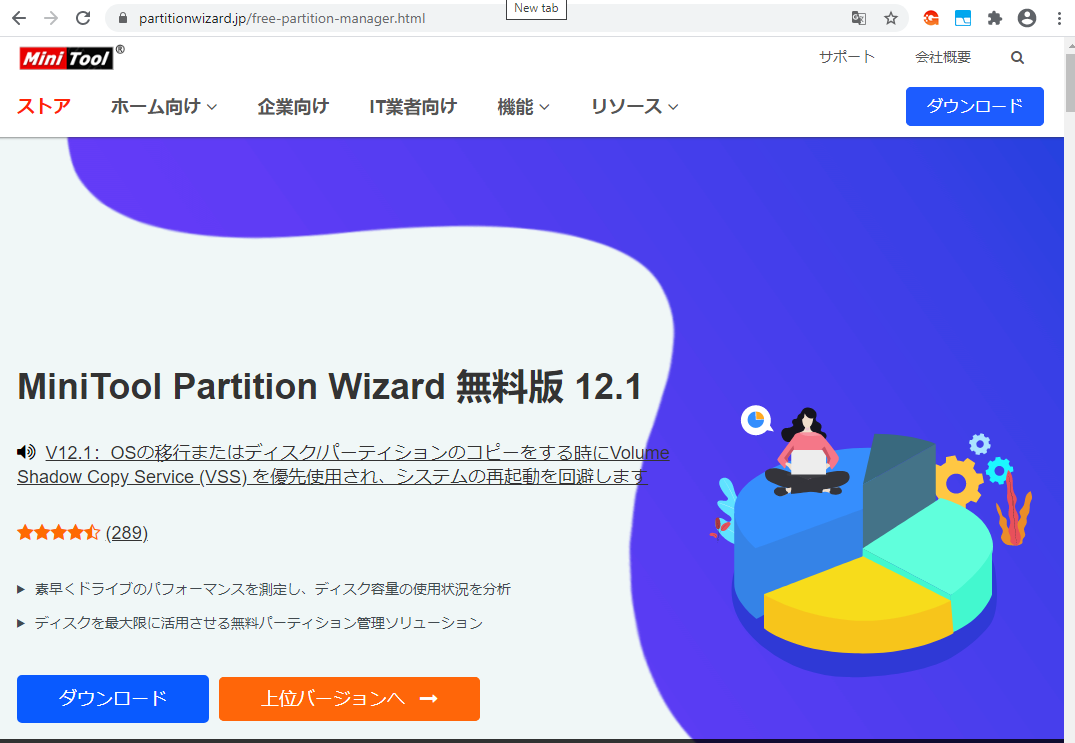
The free version of MiniTool Partition Wizard can be downloaded and installed for free from the official MiniTool website below.
Free Partition Manager Software - MiniTool Partition Wizard Free Edition
Once installation is complete, let’s proceed to partition management and try editing partitions.
On a screen like the one below, right-click on the drive you want to manage partitions for (for example, C: drive) to display the menu. You can confirm that various options are displayed, such as merging, extending, resizing, copying, and formatting partitions.
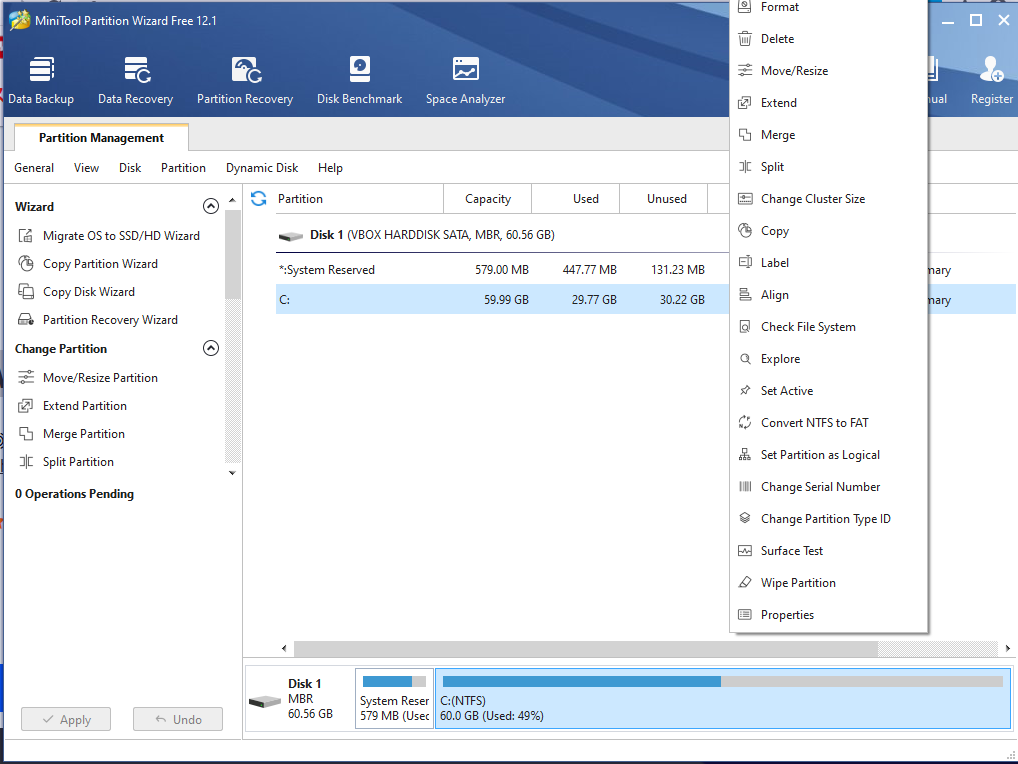
As an example this time, let’s test splitting/dividing a partition, which is performed relatively frequently.
Select Split from the right-click menu. A graphical screen is displayed, so here you drag the partition with your mouse to determine the split size. Once decided, don’t forget to click OK to close the window.
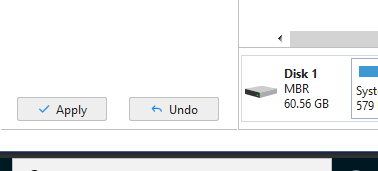
After that, by clicking the Apply button displayed on the lower left side of the window, you can confirm and apply changes to the partition. Be careful not to skip this step or changes won’t be applied.
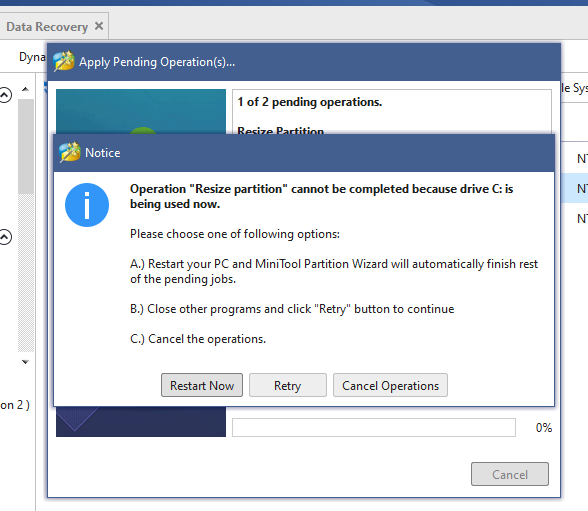
Since we tested on the C: drive this time, a popup was displayed saying that a restart is needed to completely finish applying the partition changes. When such a popup is displayed, read the notice carefully and perform appropriate actions such as restarting to complete the partition management work.
That’s it for the MiniTool Partition Wizard free version tutorial. We’ve confirmed that partition management on Windows 10 can be done very easily. The Wizard free version can be downloaded and installed for free from the official MiniTool website below.
Free Partition Manager Software - MiniTool Partition Wizard Free Edition