This article introduces how to check how many layers deep the current interactive shell is on the command line in Bash programming language (scripting language) on Linux PC/servers.
I recently wrote an article titled “How to Restart Bash Interactive Shell Without Multiple Launches”. In that article, I showed how using the exec bash command can refresh the current interactive shell to a new one, but while experimenting with various things, I discovered a non-negligible usability issue.
So I thought about how to avoid launching too many Bash instances without using exec bash.
The current terminal is displayed as tty or pts, and by displaying this with ps f, you can easily check how many layers of bash hierarchy exist in the hierarchy display.
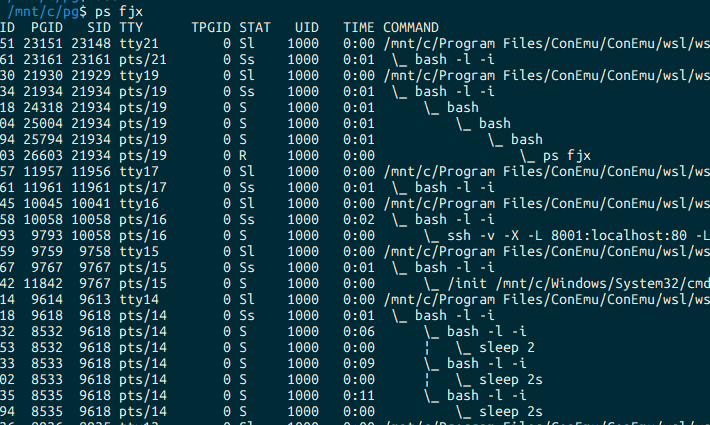
PPID   PID  PGID   SID TTY      TPGID STAT   UID   TIME COMMAND

21929 21930 21930 21929 tty19        0 Sl    1000   0:00 /mnt/c/Program Files/ConEmu/ConEmu/wsl/wslbridge-backend --check-version=0.2.5-dev -363252 -063253 -163254 -k6A72EFE6177C0FE62CC8A91F3E1369AC32E21930 21934 21934 21934 pts/19       0 Ss    1000   0:01  \_ bash -l -i
21934 24318 24318 21934 pts/19       0 S     1000   0:01      \_ bash
24318 25004 25004 21934 pts/19       0 S     1000   0:01          \_ bash
25004 25794 25794 21934 pts/19       0 S     1000   0:01              \_ bash
25794 26603 26603 21934 pts/19       0 R     1000   0:00                  \_ ps fjx
This way, you can confirm that bash is launched three layers deep.
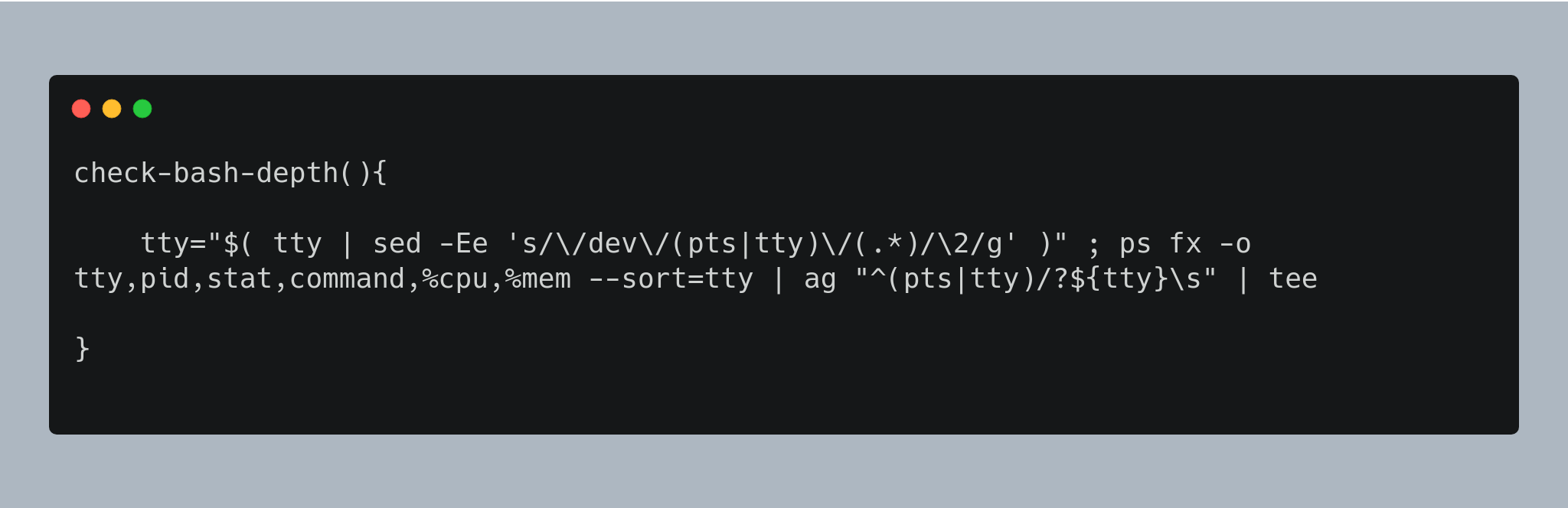
Applying this, I wrote a script like the following.
check-bash-depth(){

    tty="$( tty | sed -Ee 's/\/dev\/(pts|tty)\/(.*)/\2/g' )" ; ps fx -o tty,pid,stat,command,%cpu,%mem --sort=tty | ag "^(pts|tty)/?${tty}\s" | tee

}
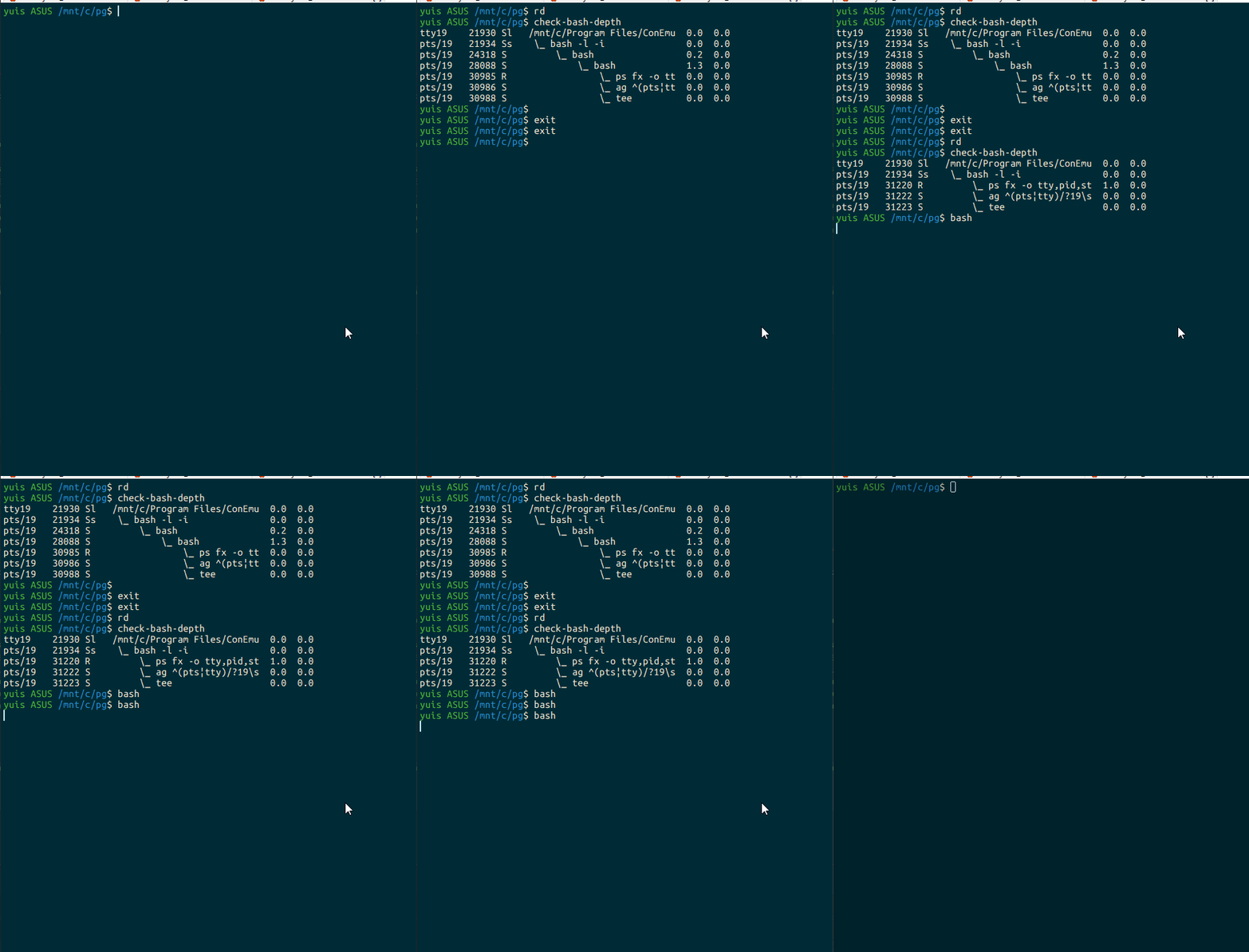
yuis ASUS /mnt/c/pg$ check-bash-depth
pts/11 6135 Ss \_ bash -l -i 0.0 0.0
pts/11 4006 R \_ ps fx -o tty,pid,st 0.0 0.0
pts/11 4007 S \_ ag ^(pts|tty)/?11\s 0.0 0.0
pts/11 4009 S | \_ sh -c git confi 0.0 0.0
pts/11 4010 R | \_ git config 0.0 0.0
pts/11 4008 S \_ tee 0.0 0.0
By executing check-bash-depth, you can see how many layers of Bash interactive shell the current terminal has. This allows you to exit intermediate layers of Bash that have been launched multiple times without logging out of the current login shell, suppressing CPU usage while working.
As shown in the display, since all processes of the current terminal are displayed, it can be used not only to know the Bash hierarchy, but also when you want to check all processes of all interactive shells in the current terminal.