This article is about choosing the best text editor among Sublime Text 3, Atom, Vim, and others.
There are so many text editors available. You may be wondering whether domestic or foreign editors are better.
Among the editors I know, Hidemaru and Adobe’s Atom-like editor (I forgot the name) are also famous.
This time, we’ll compare four editors that are probably the most well-known for programming in Japan: Sakura Editor, Sublime Text 3, Atom, and Vim, along with other editors.
The Conclusion First: Atom is the Most Recommended Editor
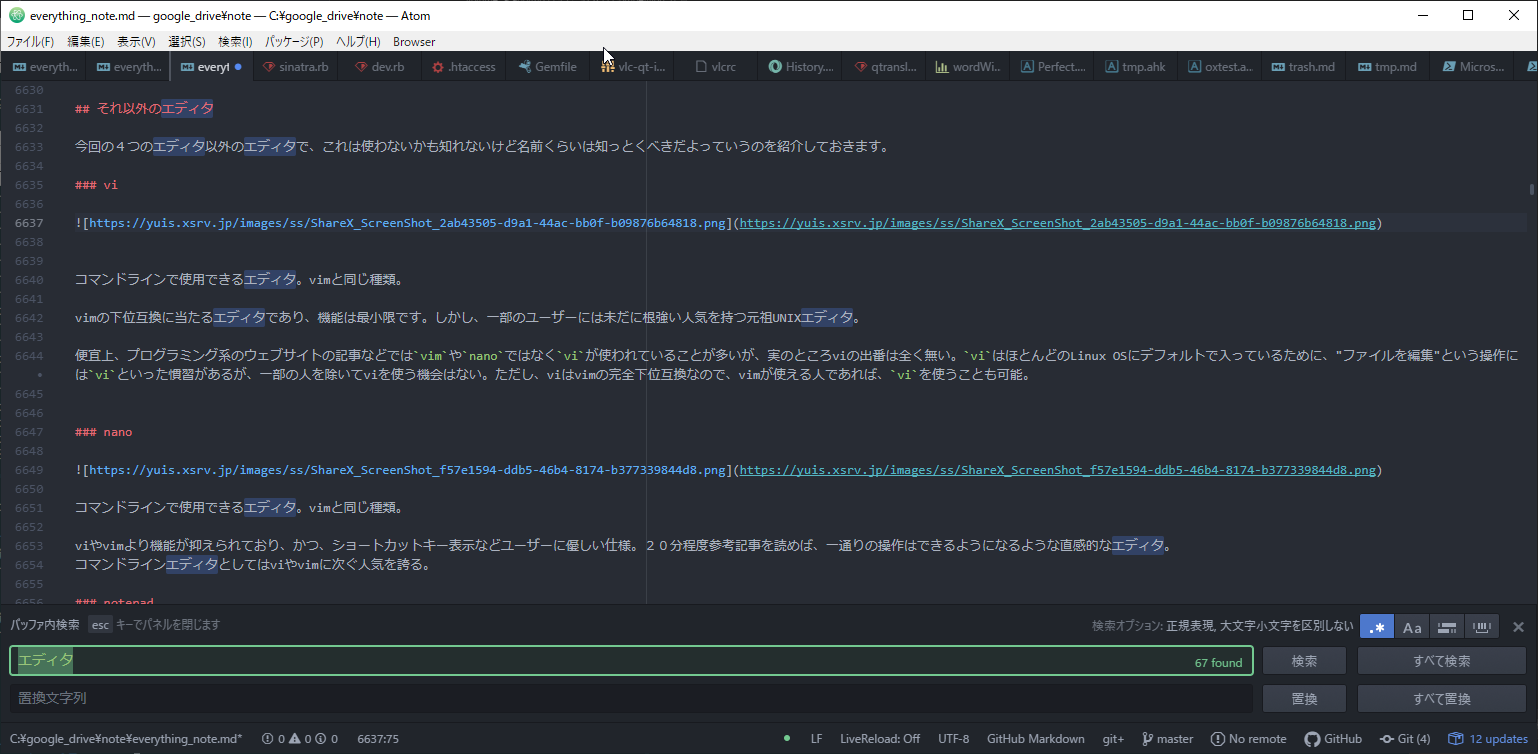
Atom has a user-friendly interface and functionality that’s practical right after installation, and it’s an open-source editor with high extensibility.
It’s truly an editor that can be used by everyone from beginners to veterans, and it’s my top recommendation.
Preface: How Long I Used Each Editor
I’ve been programming for nearly five years, and an editor is something that’s absolutely essential for programming. When you decide to start programming, it’s something you look for even before setting up your environment - it’s in an extremely important position.
First, the editor I used when I started was Sakura Editor. I used Sakura Editor for… over a year. Next, I used Sublime Text. I used this for about the same period. And now, for over a year and a half, I’ve been using Atom.
Besides these, I’ve also tried Adobe’s editor (I forgot the name) that got some attention, and Notepad++, though only for about a day each. For console editors, since I started frequently using SSH, I first used vi, then settled on nano for a while, and now I use rmate when available, but when rmate isn’t available, I use Vim. Or if I just need to copy-paste or append to a file, I use cat.
Now let’s go through the editors one by one.
Sakura Editor
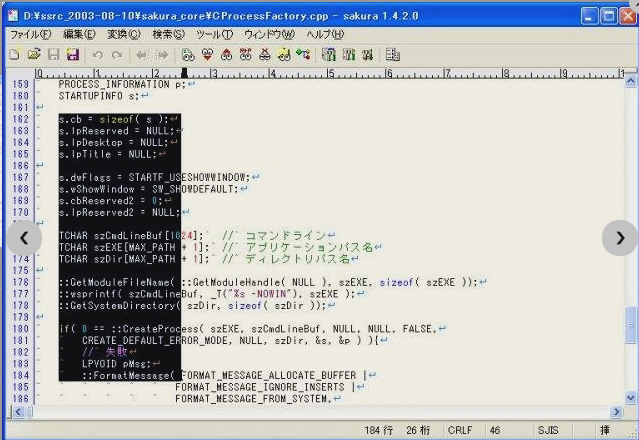
Sakura Editor is a domestic editor, and it’s an editor whose name comes up not only for programming but also for general text writing. In Japan, it has about the same level of recognition as Hidemaru Editor.
So, what do I think about Sakura Editor… I can’t recommend it the most among these four.
Don’t misunderstand - I’m not saying Sakura Editor is bad. It’s just that I couldn’t master it.
Most editors have a built-in feature for syntax highlighting by language. That’s what creates the colorful editor you often see. With Sakura Editor, you need to set these up manually. For Ruby, for example, you search for a Ruby syntax highlighting file, download it, open the settings, and enter the path. Only after all this can you get syntax highlighting.
Additionally, you need to manually configure settings that come standard in other editors, and it takes time before you can use it as a programming editor.
In my opinion, it’s better than Windows’ standard Notepad, but below Ubuntu’s standard editor gedit. (Sorry for being harsh.)
However, Sakura Editor is the only domestic editor among the four I’m introducing today. The fact that it can stand on the same stage as foreign editors is impressive. If you don’t like foreign editors and prefer domestic ones, you can’t go wrong with Sakura Editor. However, just because it’s domestic doesn’t mean there’s more Japanese information available than for the editors mentioned later (there are many domestic users of the editors mentioned later as well).
Sublime Text 3
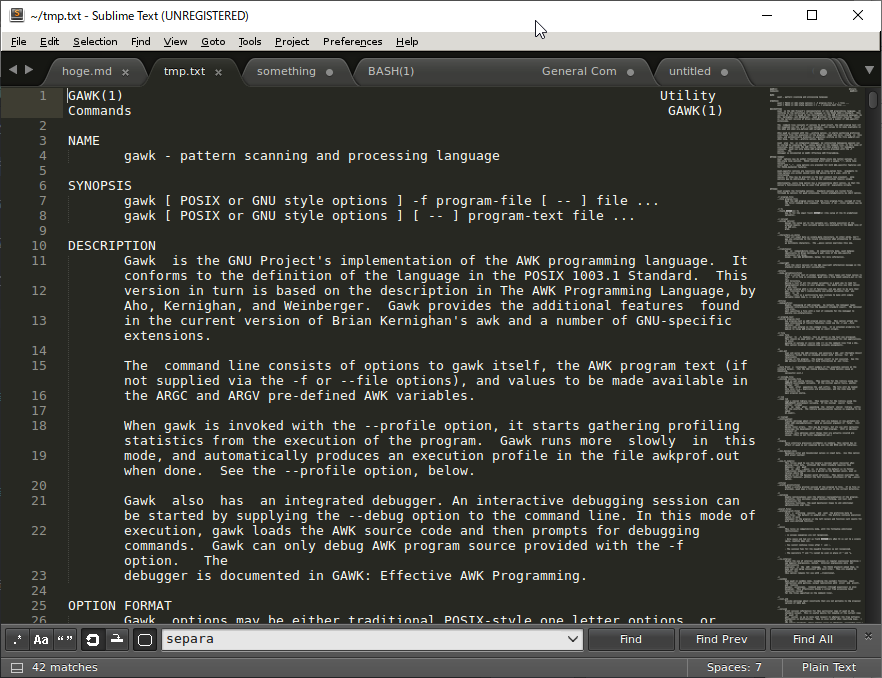
Sublime Text can be said to have been the best editor before Atom became popular. There are versions 2 and 3, but there’s no reason to use version 2.
You can open a panel with Ctrl-Shift-P and execute commands to do various things.
Atom
With a user-friendly interface even for beginners, the number of users is increasing year by year. Currently, when it comes to text editors, Atom is probably the first name that comes up.
It’s built from Electron and is a cross-platform editor that can be used on Mac, Linux, and Windows.
Also, it has many similarities with Sublime Text, including many of the same keyboard shortcuts. Therefore, it’s easy to switch from Sublime Text to Atom.
You can execute the unique apm command to install, update, and enable extension plugins.
Also, if you know JavaScript or CoffeeScript, it’s easy to add functionality to Atom.
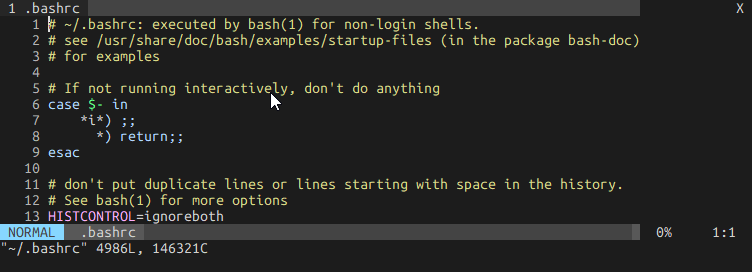
Vim
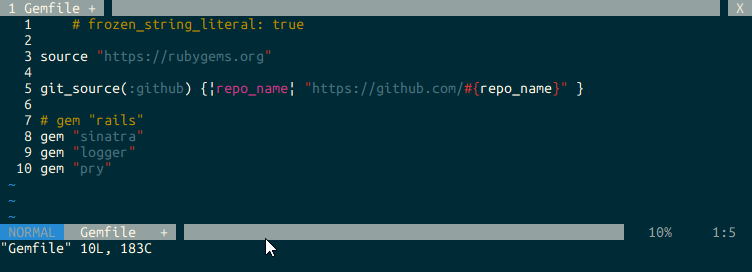
A classic editor that continues to captivate many experienced programmers.
By editing the .vimrc file, you can configure various additional features.
Other Editors
Besides these four editors, I’ll introduce some that you might not use but should at least know by name.
vi
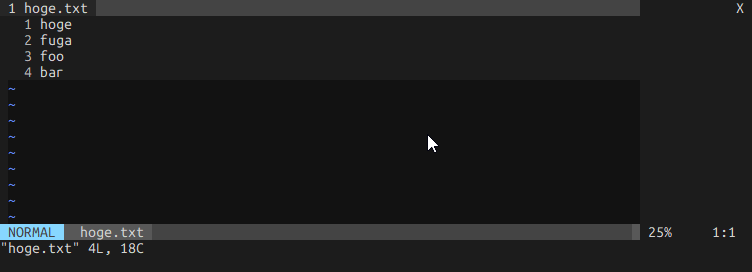
A command-line editor. Same type as Vim.
An editor that is a lower-compatible version of Vim with minimal features. However, it’s the original UNIX editor that still has a strong following among some users.
For convenience, vi is often used in articles on programming websites instead of vim or nano, but in reality, there’s almost no need for vi. Because vi comes installed by default on most Linux OSes, there’s a convention that “editing a file” means using vi, but except for some people, there’s no opportunity to use vi. However, since vi is fully backward-compatible with Vim, anyone who can use Vim can also use vi.
nano
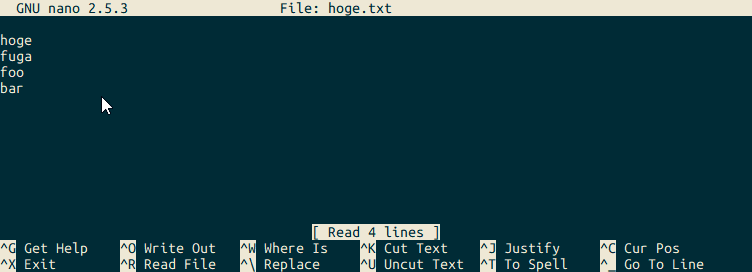
A command-line editor. Same type as Vim.
It has more restrained features than vi or Vim, and user-friendly specifications such as keyboard shortcut displays. It’s an intuitive editor where you can do all the basic operations after reading reference articles for about 20 minutes. As a command-line editor, it enjoys popularity second to vi and Vim.
notepad
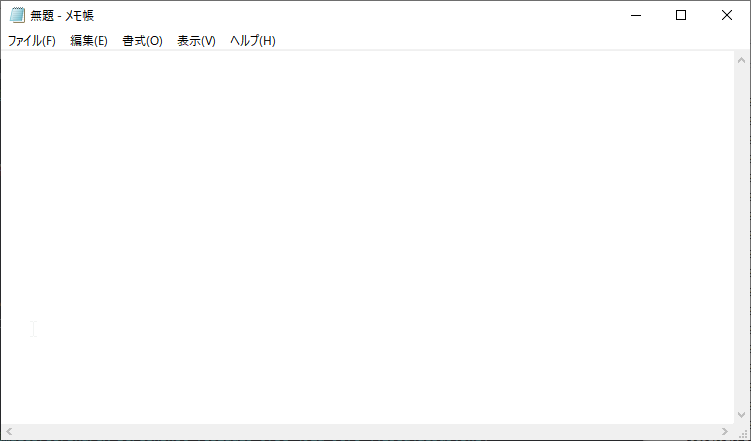
Windows’ standard editor. Called “Notepad” in Japanese.
An extremely primitive editor with minimal features - you can basically only type text. The default font is ugly, and the UI can’t be called good by any stretch of the imagination. The background color is white and cannot be changed. Extensibility through configuration files like .vimrc obviously doesn’t exist. Not only can you not do regex replacement, you can’t even do regular replacement.
However, it’s in a way the strongest editor, still being used by many Windows users.
gedit
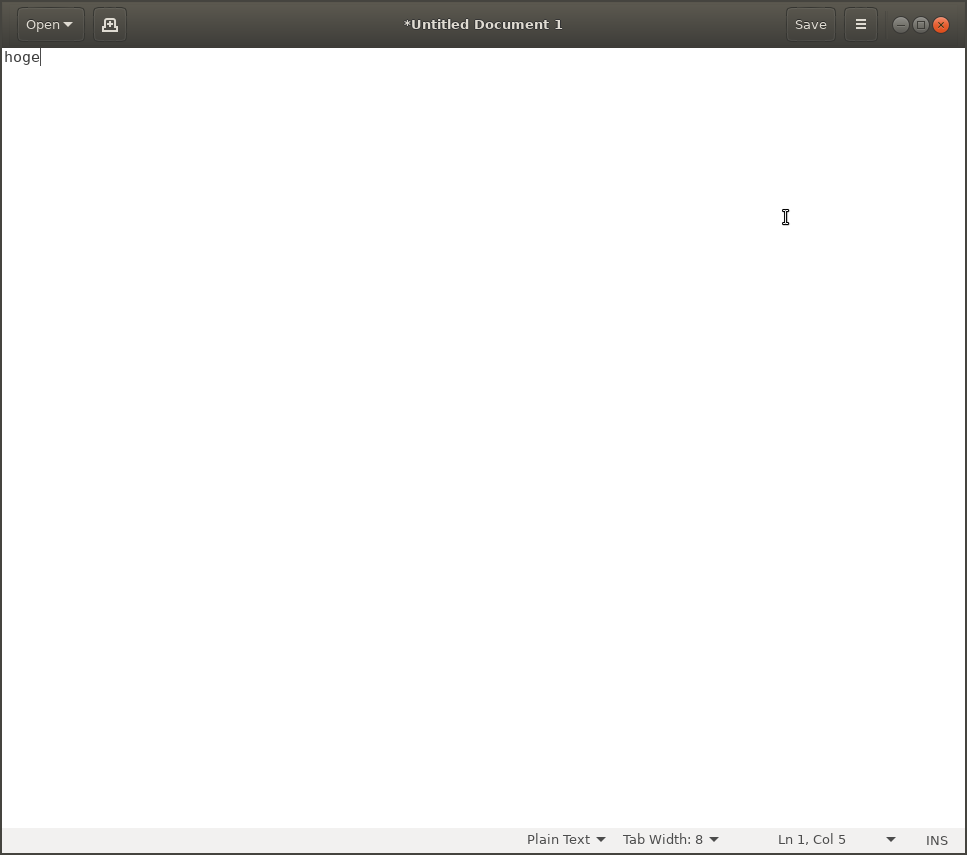
Ubuntu’s standard editor.
Unlike Notepad, it has very clean fonts and UI, and can flexibly adapt to theme changes and change background colors. Also, despite being a standard editor, it supports programming language syntax highlighting by default. You can also open new tabs with keyboard shortcuts.
cat
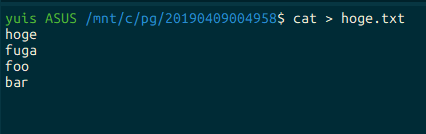
Linux standard command-line editor (?)
By doing something like cat > filename.txt, you can create a file + write to it and exit.
Also, cat >> filename.txt allows appending.
You Can’t Say One Editor is Absolutely the Best
I’ve introduced them in order. What do you think?
For those using a text editor for the first time, I can’t go wrong with Atom, as I stated at the beginning, but in reality, each of the editors introduced above has its place.
With Atom, it has an intuitive interface that’s easy to use, installation and plugin installation is simple, and it has many features. However, it uses a lot of memory, so it can be heavy at times. Also, if you install too many plugins, conflicts and bugs can easily occur.
So, if you use Sublime Text, you can open somewhat heavy files.
For even heavier gigabyte-sized files, use Vim. Also, Vim is useful when remotely logged in via SSH. Vim also has the highest extensibility and can do various things.
Additionally:
For inserting source code copied from the web into a file, use cat. For working in an environment where no editor is installed, use gedit or vi. For a command-line editor to use as a bridge until you get used to Vim, use nano.
You can differentiate usage in these ways.
Rather than sticking to just one editor, I recommend trying other editors yourself once you get used to it.