To use discord.js, which allows you to programmatically control Discord from Node.js, we create and configure API tokens and bot accounts, and add them to servers.
To operate Discord with Node.js’s discord.js, you need API tokens and bot accounts. The flow is: create an API, create a bot account linked to that API, generate a URL with permissions set from the created bot account, click that URL in a browser or Discord app logged into Discord to add that bot account to any server.
Creating API and Bot Account
First, create an API and bot account in Discord.
Navigate to the API portal page.
Discord Developer Portal — My Applications
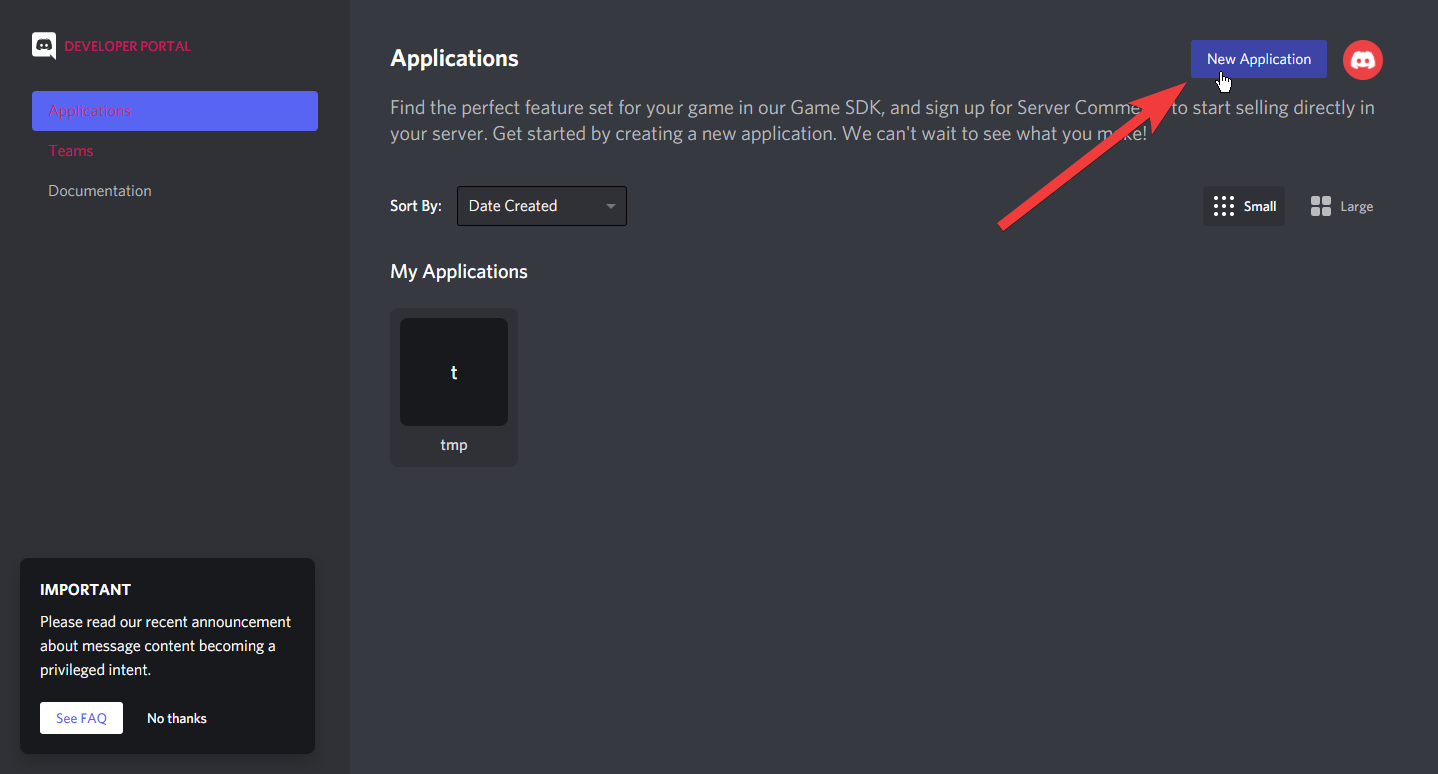
Click “New application” or “Create new application” You’ll be asked for a name, so enter an appropriate name. Here, we used “hogehoge” as an example.
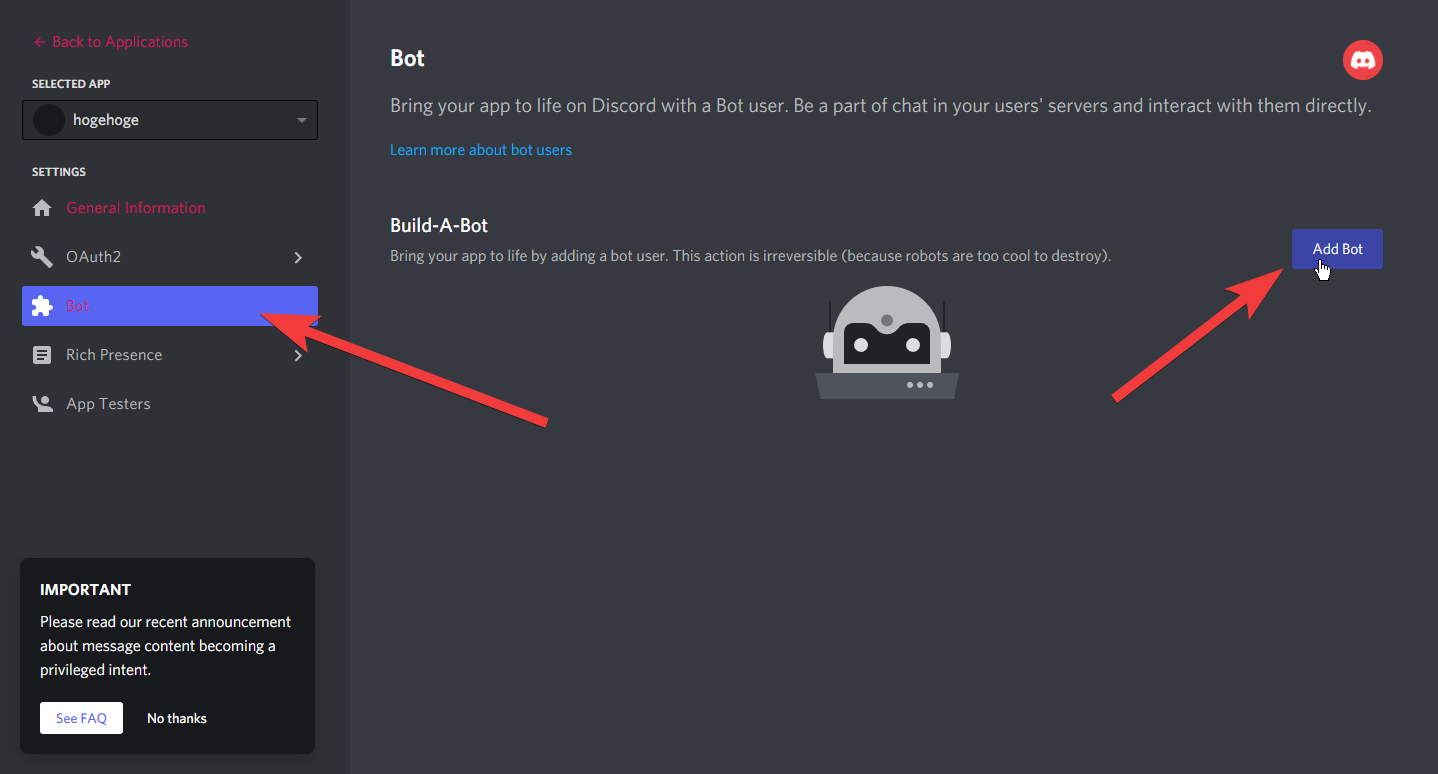
Select “bot” from the menu on the left side of the screen, click “add bot” or “Add bot”
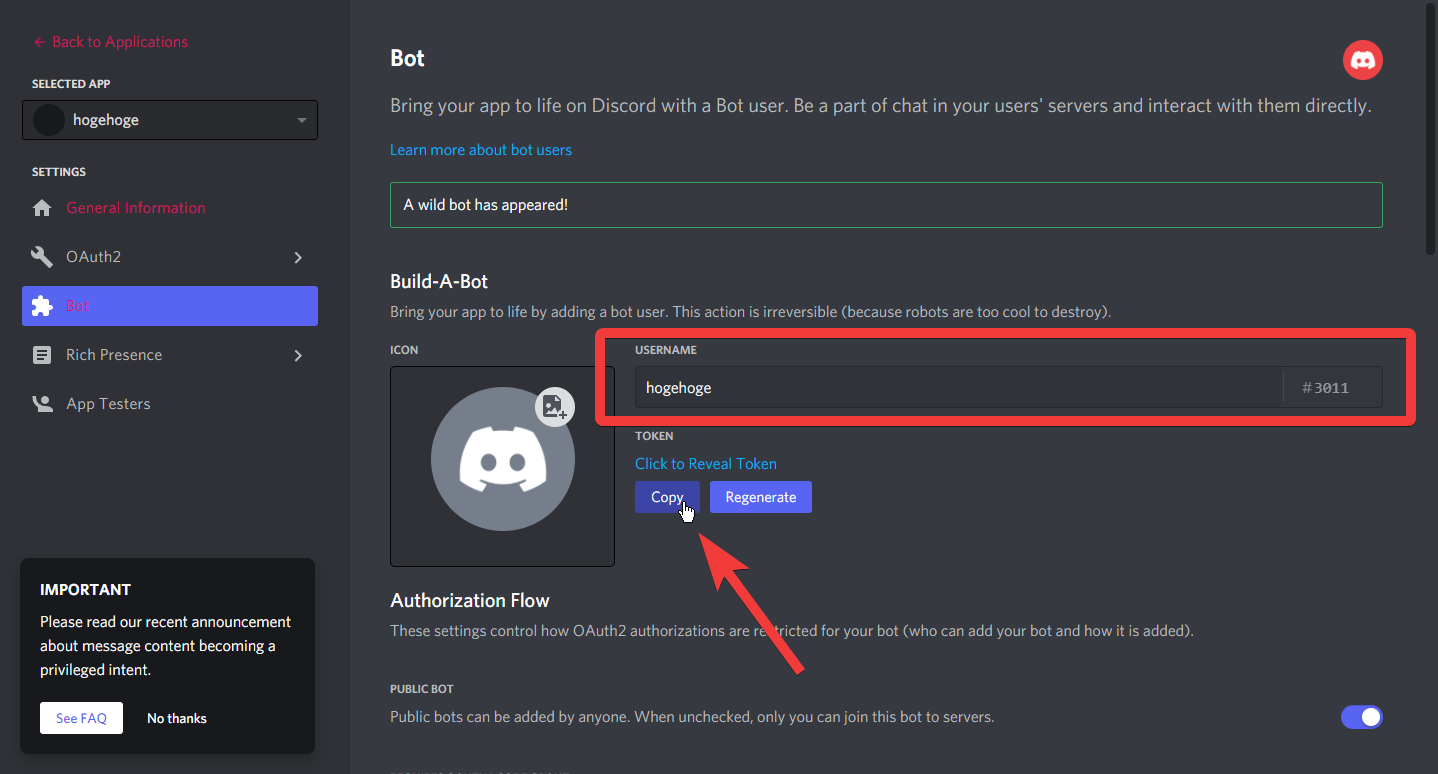
At this point, you can copy/display the created bot’s ID (e.g., hogehoge#1234) and the API token. Click copy to copy the API token to your clipboard. This will be used later in Node.js.
Reference:
Setting up a bot application | Discord.js Guide
Generating OAuth2 URL
Generate an OAuth2 URL. This is the step that allows you to share the bot with other users and enables other users or admin users to add that bot to the Discord server they manage.
From the menu on the left side of the screen, proceed to OAuth2 > URL Generator. You’ll be asked to select scopes for permissions, so here select “bot” and “applications.commands”.
OAuth2 URL generator, Select the bot and applications.commands, [Adding your bot to servers | Discord.js Guide](https://discordjs.guide/preparations/adding-your-bot-to-servers.html#bot-invite-links)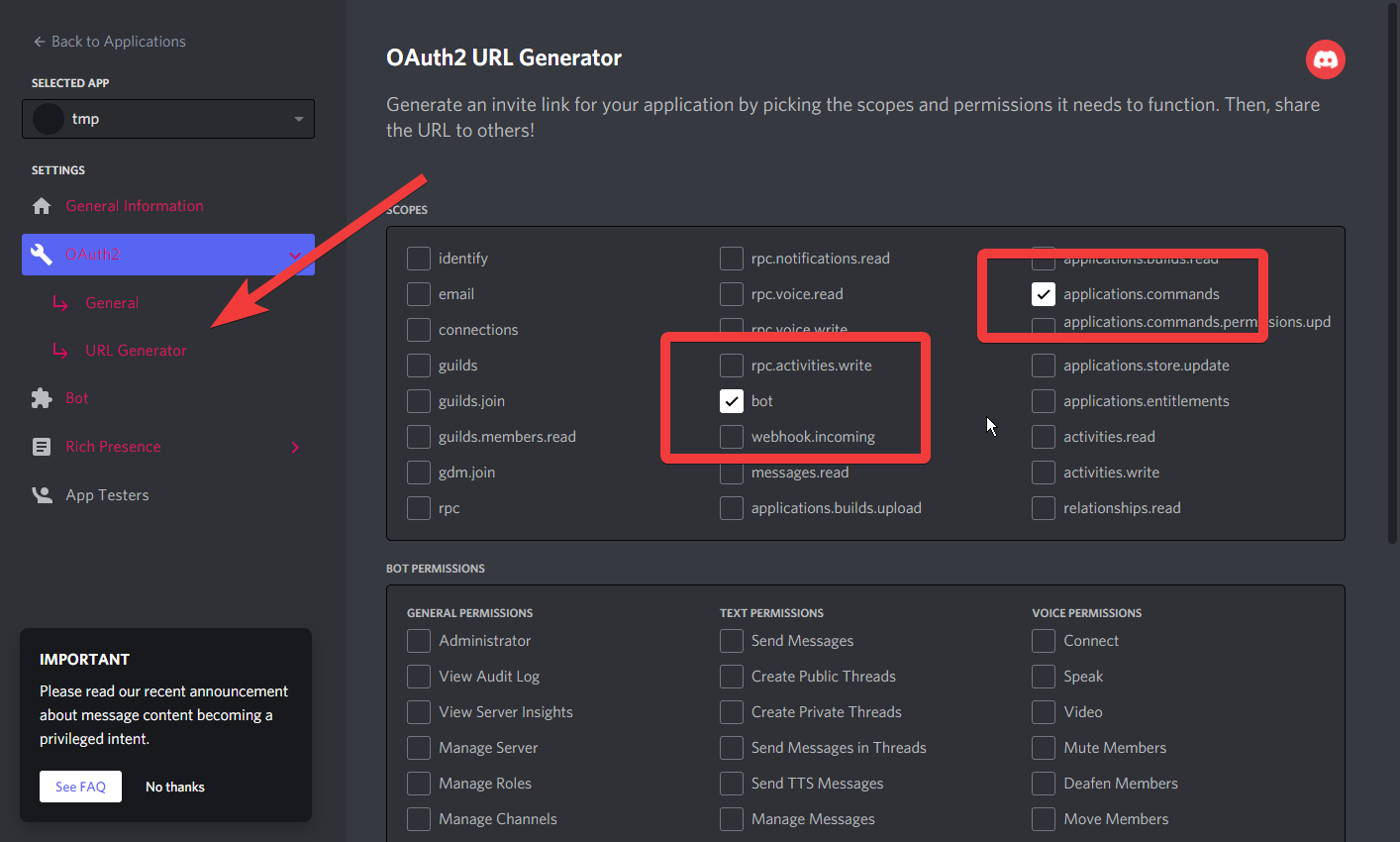
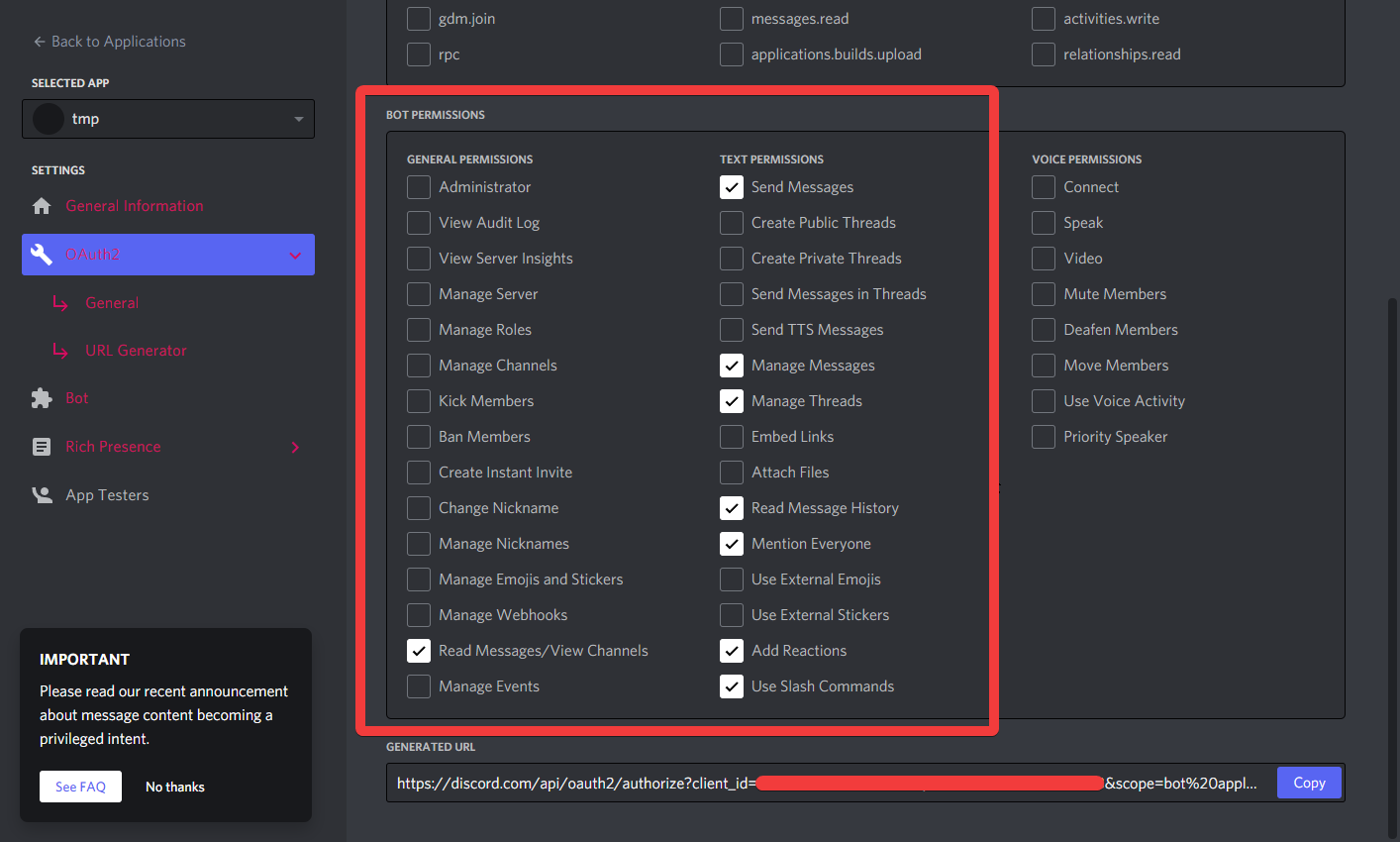
Scroll down the screen and set permissions. Here we set permissions as an example like this. After setting permissions, copy the displayed URL from the copy button in the bottom right of the screen.
Example: send messages manage messages manage threads read message history mention everyone add reactions use slash commands read messages/view channels
Reference:
Adding your bot to servers | Discord.js Guide
Adding Bot Account to Any Server
Open the copied URL in a browser or Google Chrome logged into Discord.
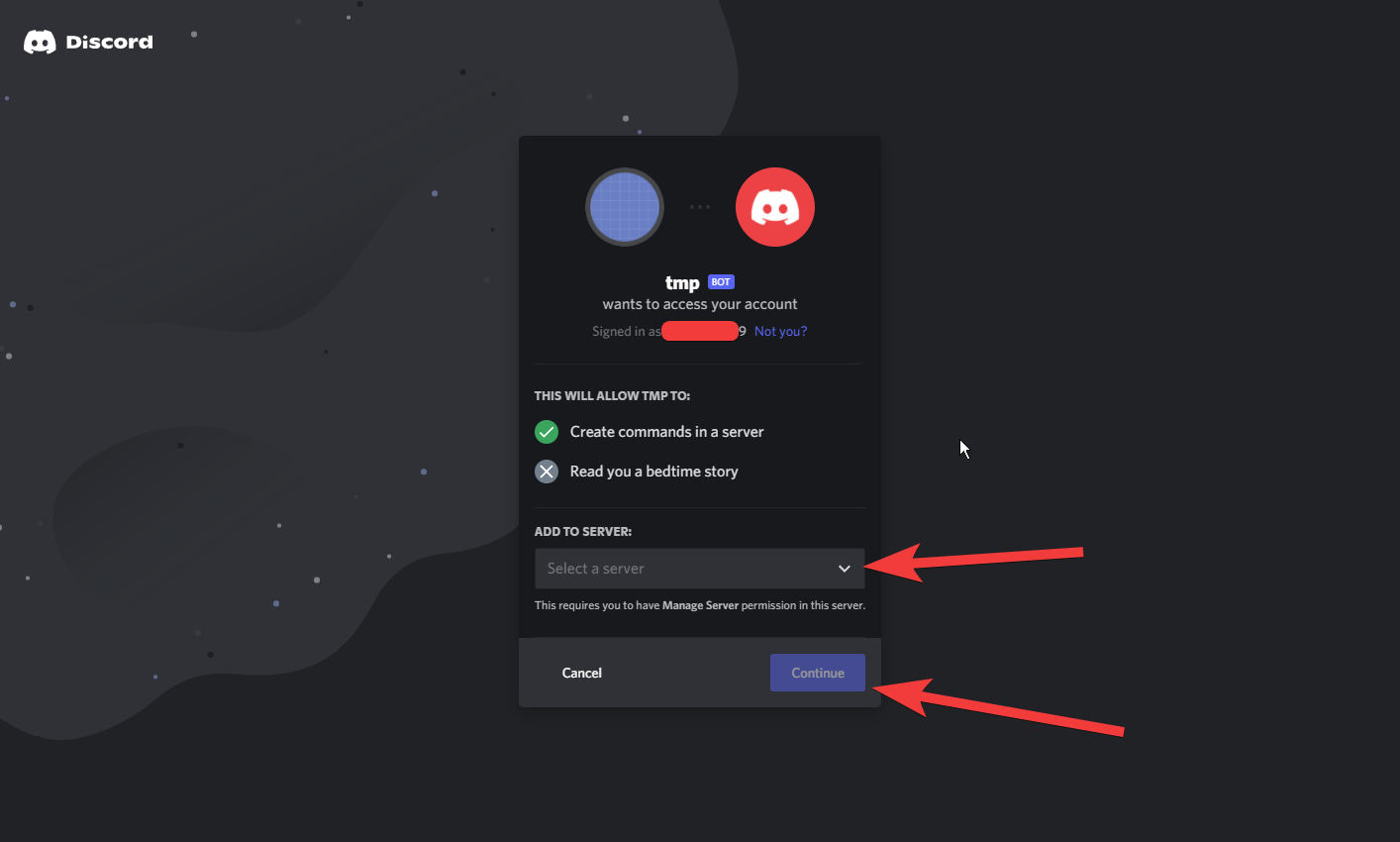
Select the server you want to add the bot to in “select server”. Click “continue” and confirm the authentication. Once you can see the completion icon, you should be able to confirm that the bot has been added to the server.