This article introduces how to customize the ownCloud login page and shared URL (share URL) pages with a cool theme.
Everyone loves ownCloud. While tinkering with the ownCloud source code, I made various discoveries, and among them, I tried customizing the login page, which seems to have practical use (?).
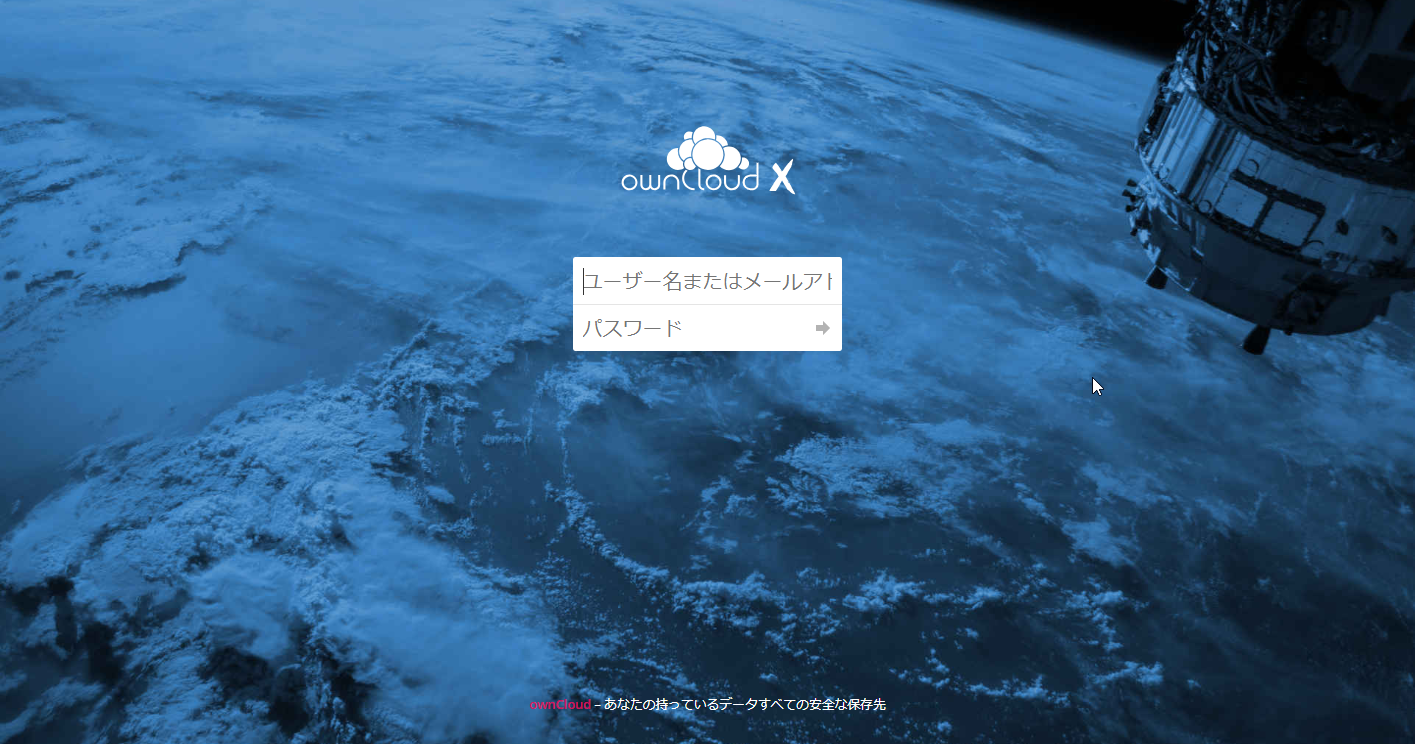
Now let’s get into the specific method. I haven’t modified much, so it should be fine, but please do this at your own risk as it might create security holes.
Let’s get started
First, we want a template to modify, so install one of the plugins Wallpaper app | ownCloud Marketplace.
Then SSH into the server and confirm the folder exists.
ls ~/shit.xsrv.jp/public_html/owncloud/apps/wallpaper/
Then edit the file with rmate ~/shit.xsrv.jp/public_html/owncloud/apps/wallpaper/appinfo/app.php.
The code I rewrote is as follows:
<?php

if (\OC::$server->getUserSession()->isLoggedIn() !== true
    && strpos(\OC::$server->getRequest()->getRequestUri(), '/login') !== false) {
    \OCP\Util::addStyle('wallpaper', 'login');
        \OCP\Util::addScript('wallpaper', 'login');
    $manager = \OC::$server->getContentSecurityPolicyManager();
    $policy = new \OC\Security\CSP\ContentSecurityPolicy();
    $policy->addAllowedImageDomain('source.unsplash.com');
    $policy->addAllowedImageDomain('images.unsplash.com');
        $policy->addAllowedImageDomain('yuis.xsrv.jp');
    $manager->addDefaultPolicy($policy);
}

if (\OC::$server->getUserSession()->isLoggedIn() !== true
    && strpos(\OC::$server->getRequest()->getRequestUri(), '/s') !== false) {
    \OCP\Util::addStyle('wallpaper', 'login');
        \OCP\Util::addScript('wallpaper', 'login');
    $manager = \OC::$server->getContentSecurityPolicyManager();
    $policy = new \OC\Security\CSP\ContentSecurityPolicy();
    $policy->addAllowedImageDomain('source.unsplash.com');
    $policy->addAllowedImageDomain('images.unsplash.com');
        $policy->addAllowedImageDomain('yuis.xsrv.jp');
    $manager->addDefaultPolicy($policy);
}
The key points are:
\OCP\Util::addScript(‘wallpaper’, ‘login’); loads ./js/login.js for URLs that match /login, and
$policy->addAllowedImageDomain(‘yuis.xsrv.jp’); allows images to be loaded from this server.
Place your favorite images on your own server and link to them in CSS, but if not allowed by this code, you’ll get an error on the client side.
Navigation and Pre-App configuration — ownCloud Developer Manual 9.0 documentation
So, first the CSS.
With rmate ~/shit.xsrv.jp/public_html/owncloud/apps/wallpaper/css/login.css, use the following as reference:
body {
    /* background-image: url('https://source.unsplash.com/1600x900/?nature,water') !important; */
    /* background-image: url('https://hdqwalls.com/download/anime-girl-in-girls-frontline-ga-1600x900.jpg') !important; */
    background-image: url('https://yuis.xsrv.jp/data/6ceJfI2hvdbFFGudVpAX2A6jE5Ubb2Dw.jpg') !important;
    background-size: cover !important;
}

#body-login .wrapper {
    min-height: 100%;
    margin: 0 auto -70px;
    width: 300px;
    opacity: 0.3 !important;
}

#body-login p.info {
    margin: 0 auto;
    padding-top: 20px;
    -webkit-user-select: none;
    -moz-user-select: none;
    -ms-user-select: none;
    user-select: none;
    opacity: 0.7 !important;
}
Next, for JS with rmate ~/shit.xsrv.jp/public_html/owncloud/apps/wallpaper/js/login.js, use the following code:
$(document).ready(function(){

  // document.querySelector('#body-login > footer > p').remove()
  document.querySelector('#body-login > footer > p').innerHTML = `If any problem about our shared files please contact us at <strong>[https://114514.click/homepage](https://114514.click/homepage)</strong>`

});
That’s it.
This applies CSS and JS to the login page and share URL pages, resulting in a cool login screen like the image above.
Also note that after doing this, errors or warnings started appearing in ownCloud. From a security and vulnerability perspective, I recommend not doing such crude things on systems where security is required.