In the Linux command line Bash environment, we introduce several manual reference Linux commands (whatis, apropos, aptitude, tldr, cheat, etc.) that are easier and more accessible than the built-in man command for referencing manuals of command-line software and built-in commands.
tl;dr. (too long; didn’t read.)
For when you just want to know what this command does
whatis
``` $ whatis awk awk (1) - pattern scanning and text processing language ```apropos
More documentation than whatis. The description is the same. ``` $ apropos ^awk$ awk (1) - pattern scanning and text processing language ``` ([Translation] apropos of ~ about; apropos of nothing = suddenly, (=BTW?))aptitude show
Limited toapt environments like Ubuntu. More of a description of the package rather than the command. Often explained in more detail.
```
$ whatis sed
sed (1) - stream editor for filtering and transforming text
$ aptitude show sed … Description: The GNU sed stream editor sed reads the specified files or the standard input if no files are specified, makes editing changes according to a list of commands, and writes the results to the standard output. Homepage: http://www.gnu.org/software/sed/
## For when you want to see usage examples of this command
<h3><strong>tldr</strong></h3>
npm install -g tldr
$ tldr awk
awk
A versatile programming language for working on files.
-
Print the fifth column (a.k.a. field) in a space-separated file: awk ‘{print $5}’ filename
-
Print the second column of the lines containing “something” in a space-separated file: awk ‘/something/ {print $2}’ filename
-
Print the last column of each line in a file, using a comma (instead of space) as a field separator: awk -F ’,’ ‘{print $NF}’ filename
-
Sum the values in the first column of a file and print the total: awk ‘{s+=$1} END {print s}’ filename
-
Sum the values in the first column and pretty-print the values and then the total: awk ‘{s+=$1; print $1} END {print ”--------”; print s}’ filename
-
Print every third line starting from the first line: awk ‘NR%3==1’ filename
[tldr-pages/tldr: Simplified and community-driven man pages](https://github.com/tldr-pages/tldr)
<h3><strong>cheat</strong></h3>
<code>pip install cheat</code>
$ cheat awk
sum integers from a file or stdin, one integer per line:
printf ‘1\n2\n3\n’ | awk ’{ sum += $1} END {print sum}‘
using specific character as separator to sum integers from a file or stdin
printf ‘1:2:3’ | awk -F ”:” ‘{print $1+$2+$3}‘
print a multiplication table
seq 9 | sed ‘H;g’ | awk -v RS=” ‘{for(i=1;i<=NF;i++)printf(“%dx%d=%d%s”, i, NR, i*NR, i==NR?”\n”:“\t”)}‘
Specify output separator character
printf ‘1 2 3’ | awk ‘BEGIN {OFS=”:”}; {print $1,$2,$3}’
[chrisallenlane/cheat: cheat allows you to create and view interactive cheatsheets on the command-line. It was designed to help remind *nix system administrators of options for commands that they use frequently, but not frequently enough to remember.](https://github.com/chrisallenlane/cheat)
## Tips for using man more easily
For those who can't completely abandon man.
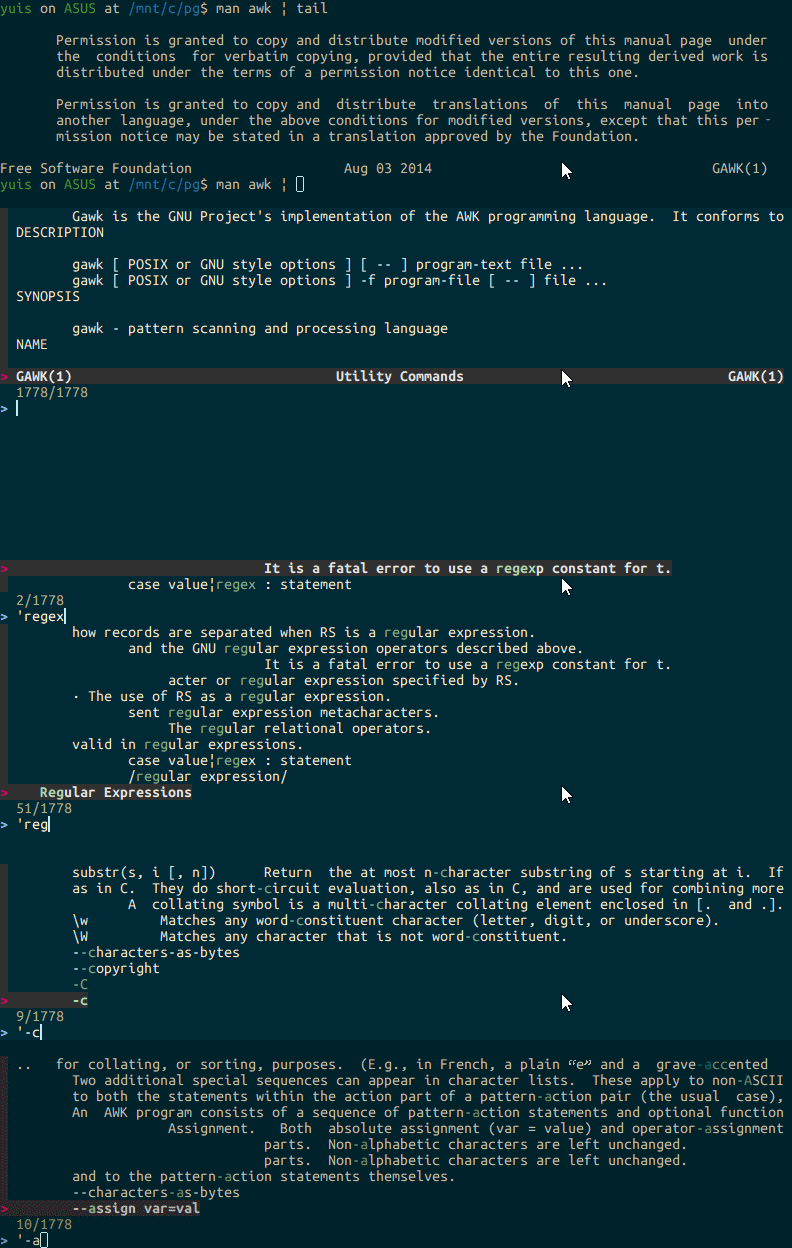
<h3><strong>fzf</strong></h3>
<code>man awk | fzf</code>
[junegunn/fzf: A command-line fuzzy finder](https://github.com/junegunn/fzf#installation)
<h3><strong>vim</strong></h3>
<code>man awk | vim -</code>
<h3><strong>sublimeText3</strong></h3>
<code>man awk > ~/tmp.txt && sublime_text ~/tmp.txt</code>
<code>man awk > ~/tmp.txt && gedit ~/tmp.txt</code>
### less
(Added in 2021)
Man plus less is still the best. With less, you can jump to the beginning/end of documents with g/G, search with regular expressions using "/", and quickly flip through pages with pageup/pagedown keys. It's a command-line-like way of using the command line, but once you get used to it, it's not a burden, so I recommend it.