This article introduces how to change the display language of Bash command line on Linux, Ubuntu, WSL, etc. to English, Japanese, or other languages. First, install the language pack on Linux and install necessary dependencies and related packages, then change/switch the language with the export LC_ALL command.
Before installing the language pack, first list the languages currently installed on the system. Use the “locale -a” command.
$ locale -a
C
C.UTF-8
en_US.utf8
POSIX
To install the Japanese language pack on a Linux computer or server, execute the following:
sudo apt update; sudo apt install language-pack-ja -y
sudo apt update; sudo apt install -y locales
sudo locale-gen
Also, to install the English language pack, execute the following:
sudo apt update; sudo apt install language-pack-en -y
sudo apt update; sudo apt install -y locales
sudo locale-gen
After installation is complete, restart the bash console. For example, if you have a terminal open, reopen it in a new instance or close and restart the terminal. Similarly for WSL Bash using conemu or Hyper, close and reopen conemu.
If you don’t perform this step, the language pack patch will be applied in an unnatural way and won’t work completely. If you try to change the language with the export LC_ALL command, you may see an error message like the following:
$ export LC_ALL=ja_JP.utf8
bash: warning: setlocale: LC_ALL: cannot change locale (ja_JP.utf8)
$ export LC_ALL=ja_JP.utf8
bash: warning: setlocale: LC_ALL: cannot change locale (ja_JP.utf8)At this point, the language pack installation should be complete, so run the locale -a command again and check the result. In my environment, I installed the Japanese language pack on an English Linux system, so “ja_JP.utf8” is added to the end of the list.
$ locale -a
C
C.UTF-8
POSIX
ja_JP.utf8After restarting the console/terminal, execute the following to switch the language. In the following case, change the language to Japanese.
$ export LC_ALL=ja_JP.utf8In the following case, change the language to English.
$ export LC_ALL=en_US.UTF-8If executing the above command results in an error like the following, the command may be wrong, typed incorrectly, or the language pack installation may not be complete. Review the steps or try searching Stack Overflow.
$ export LC_ALL=ja_JP.utf8
bash: warning: setlocale: LC_ALL: cannot change locale (ja_JP.utf8): No such file or directory$ export LC_ALL=ja_JP.utf8
bash: 警告: setlocale: LC_ALL: ロケールを変更できません (ja_JP.utf8): そのようなファイルやディレクトリはありませんSince language pack installation and changes are now complete, you should be able to see various command and log outputs in Japanese (or English) at this point.
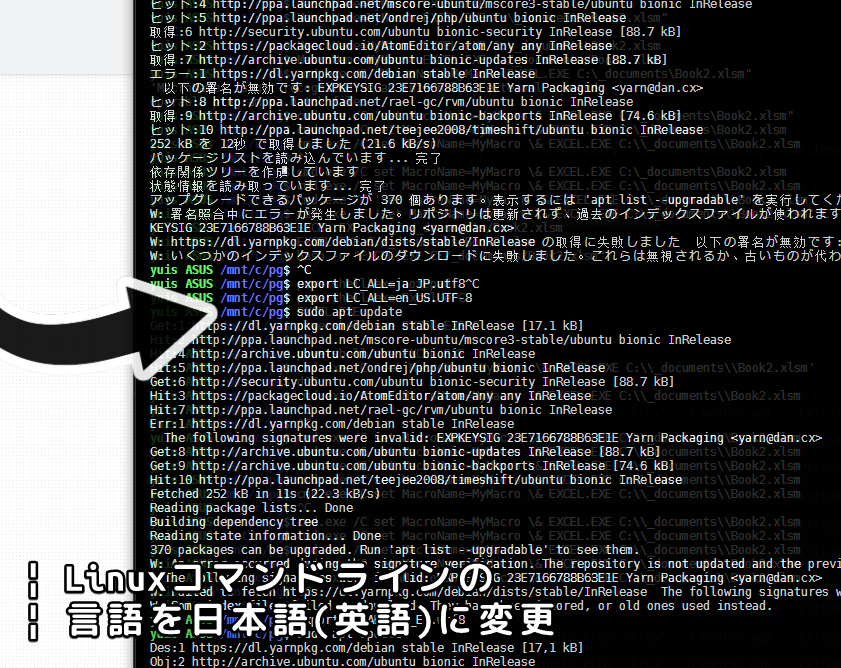
Below, we output the “sudo apt update” command in English and Japanese as examples.
$ export LC_ALL=ja_JP.utf8

$ sudo apt update
取得:1 https://dl.yarnpkg.com/debian stable InRelease [17.1 kB]
ヒット:3 http://archive.ubuntu.com/ubuntu bionic InRelease
ヒット:4 http://ppa.launchpad.net/mscore-ubuntu/mscore3-stable/ubuntu bionic InRelease
ヒット:5 http://ppa.launchpad.net/ondrej/php/ubuntu bionic InRelease
取得:6 http://security.ubuntu.com/ubuntu bionic-security InRelease [88.7 kB]
ヒット:2 https://packagecloud.io/AtomEditor/atom/any any InRelease
取得:7 http://archive.ubuntu.com/ubuntu bionic-updates InRelease [88.7 kB]
エラー:1 https://dl.yarnpkg.com/debian stable InRelease
  以下の署名が無効です: EXPKEYSIG 23E7166788B63E1E Yarn Packaging <yarn@dan.cx>
ヒット:8 http://ppa.launchpad.net/rael-gc/rvm/ubuntu bionic InRelease
取得:9 http://archive.ubuntu.com/ubuntu bionic-backports InRelease [74.6 kB]
ヒット:10 http://ppa.launchpad.net/teejee2008/timeshift/ubuntu bionic InRelease
252 kB を 12秒 で取得しました (21.6 kB/s)
パッケージリストを読み込んでいます... 完了
依存関係ツリーを作成しています
状態情報を読み取っています... 完了
アップグレードできるパッケージが 370 個あります。表示するには 'apt list --upgradable' を実行してください。
W: 署名照合中にエラーが発生しました。リポジトリは更新されず、過去のインデックスファイルが使われます。GPG エラー: https://dl.yarnpkg.com/debian stable InRelease: 以下の署名が無効です: EXPKEYSIG 23E7166788B63E1E Yarn Packaging <yarn@dan.cx>
W: https://dl.yarnpkg.com/debian/dists/stable/InRelease の取得に失敗しました  以下の署名が無効です: EXPKEYSIG 23E7166788B63E1E Yarn Packaging <yarn@dan.cx>
W: いくつかのインデックスファイルのダウンロードに失敗しました。これらは無視されるか、古いものが代わりに使われます。
Then, change the language to English and execute the same command.
$ export LC_ALL=en_US.UTF-8

$ sudo apt update
Get:1 https://dl.yarnpkg.com/debian stable InRelease [17.1 kB]
Hit:2 http://ppa.launchpad.net/mscore-ubuntu/mscore3-stable/ubuntu bionic InRelease
Hit:4 http://archive.ubuntu.com/ubuntu bionic InRelease
Hit:5 http://ppa.launchpad.net/ondrej/php/ubuntu bionic InRelease
Get:6 http://security.ubuntu.com/ubuntu bionic-security InRelease [88.7 kB]
Hit:3 https://packagecloud.io/AtomEditor/atom/any any InRelease
Hit:7 http://ppa.launchpad.net/rael-gc/rvm/ubuntu bionic InRelease
Err:1 https://dl.yarnpkg.com/debian stable InRelease
  The following signatures were invalid: EXPKEYSIG 23E7166788B63E1E Yarn Packaging <yarn@dan.cx>
Get:8 http://archive.ubuntu.com/ubuntu bionic-updates InRelease [88.7 kB]
Get:9 http://archive.ubuntu.com/ubuntu bionic-backports InRelease [74.6 kB]
Hit:10 http://ppa.launchpad.net/teejee2008/timeshift/ubuntu bionic InRelease
Fetched 252 kB in 11s (22.3 kB/s)
Reading package lists... Done
Building dependency tree
Reading state information... Done
370 packages can be upgraded. Run 'apt list --upgradable' to see them.
W: An error occurred during the signature verification. The repository is not updated and the previous index files will be used. GPG error: https://dl.yarnpkg.com/debian stable InRelease: The following signatures were invalid: EXPKEYSIG 23E7166788B63E1E Yarn Packaging <yarn@dan.cx>
W: Failed to fetch https://dl.yarnpkg.com/debian/dists/stable/InRelease  The following signatures were invalid: EXPKEYSIG 23E7166788B63E1E Yarn Packaging <yarn@dan.cx>
W: Some index files failed to download. They have been ignored, or old ones used instead.
As above, by changing the language, command output and log output are displayed in Japanese (or English).
Summary
This article introduced how to change the display language of Bash command line on Linux, Ubuntu, WSL, etc. to English, Japanese, or other languages.
To change the language, first install the language pack on Linux and install necessary dependencies and related packages, then change/switch the language with the export LC_ALL command.
By changing the language to English, command output and log output are displayed in English. This is helpful when searching for English Linux command line information.
I hope this is useful for everyone’s programming learning and development.