This article is about how to terminate and force kill all processes in Windows Linux WSL Bash, including running programs, daemons, and background processes.
Out of the blue, I think of my computer as a server, and I rarely reboot it. I often go nearly a month without rebooting. Well, it’s not good from a security update perspective if I don’t reboot with some regularity, so I do maintain a minimum frequency.
And when using a computer this way, you inevitably end up troubled by memory and CPU usage that accumulates over time.
How do you use WSL bash? You might be using ConEmu, Termux, or simply launching bash.exe from Win-R. It’s not limited to WSL bash, but terminals often don’t seem to terminate just by closing the console window.
Let’s actually verify this by closing all ConEmu and bash windows, and then running a command like ps fjx when you’re confident there are no WSL processes.
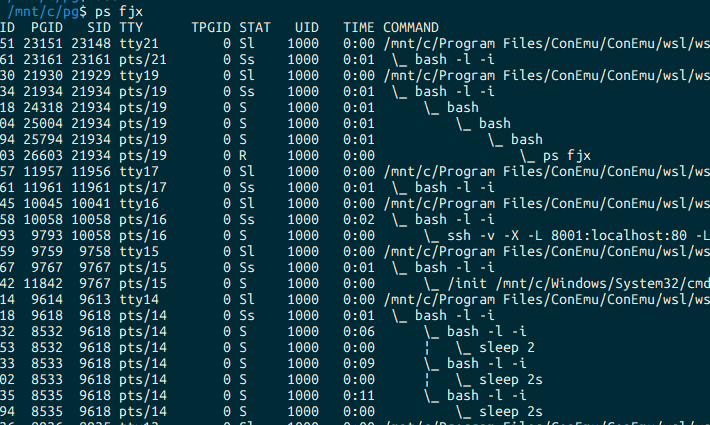
Strangely, processes you thought had terminated are still alive.
I don’t fully understand the mechanism, but let’s accept for now that this is just how Linux works.
Now, how can we truly force-terminate these processes?
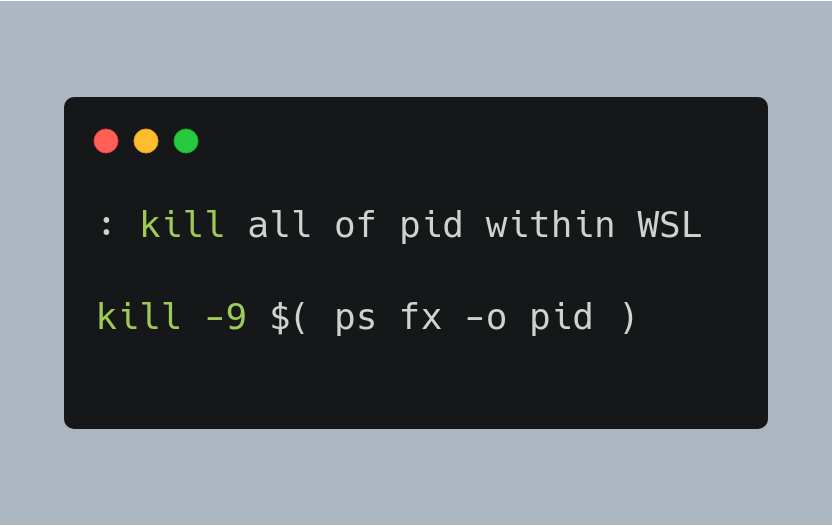
: kill all of pid within WSL

kill -9 $( ps fx -o pid )
Launch bash casually and run the above command to terminate all processes.
By the way, kill and many other commands can receive multiple arguments as an array. The above is written by applying the same logic. Some people use xargs to do something similar to the above in a more cumbersome way, but this writing method is naturally faster and easier to write.
ps fx -o pid | xargs kill[Addition] It seems you need to kill conhost.exe for it to be meaningful
This is an addition. I found a more complete method, so I’m reporting it.
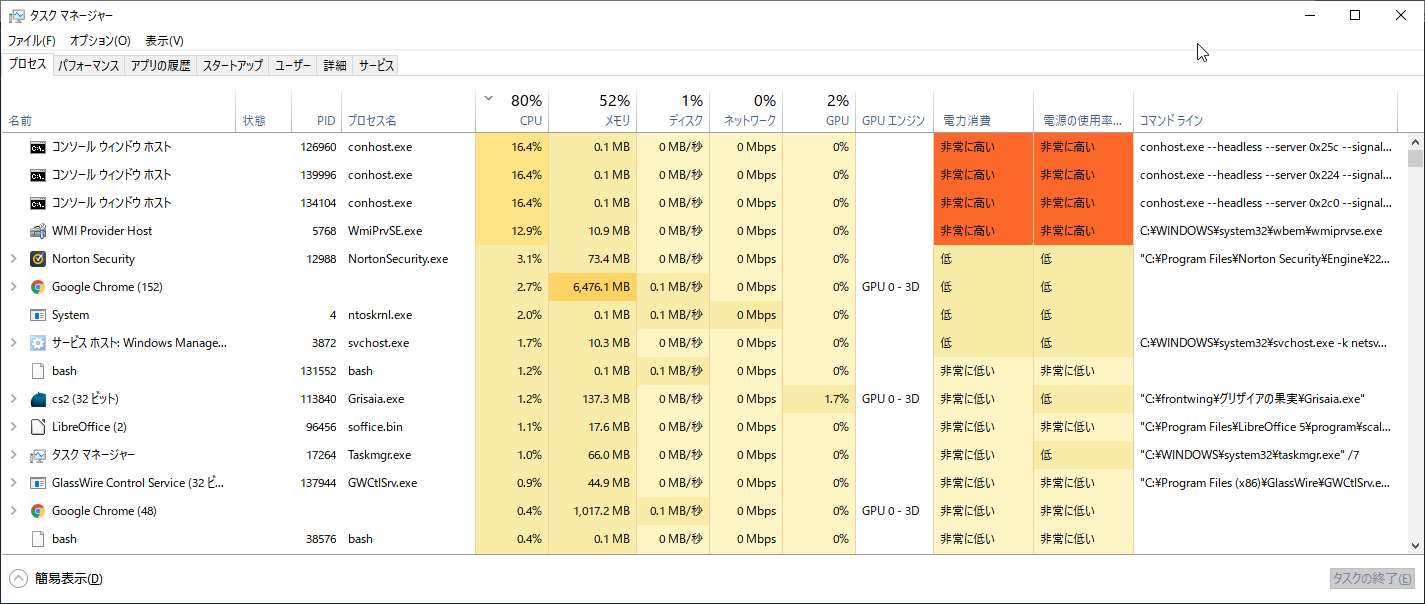
Earlier, despite executing the above command, the command line process was still eating up nearly 50% of CPU, so thinking “This won’t do,” I looked for another method.

As you can see, the conhost.exe process is eating CPU, so I thought I should kill it with PowerShell or something, but I had a bad feeling, so I first looked into how to terminate it.
And here’s what I found:
windows 7 - (When) is CONHOST.EXE actually necessary? - Super User
Apparently, you can force-terminate it with the following command:
taskkill /f /im conhost.exe[Warning] The above command affects not only WSL but all command line processes. e.g. PowerShell, cmd. Some installation programs use command lines, so I recommend avoiding executing this particularly during software installation.
I’m not familiar with CMD, so I don’t know for sure, but what it’s doing is probably the same as Stop-Process -Name “conhost” in PowerShell. I haven’t tried it, so I’m not sure.
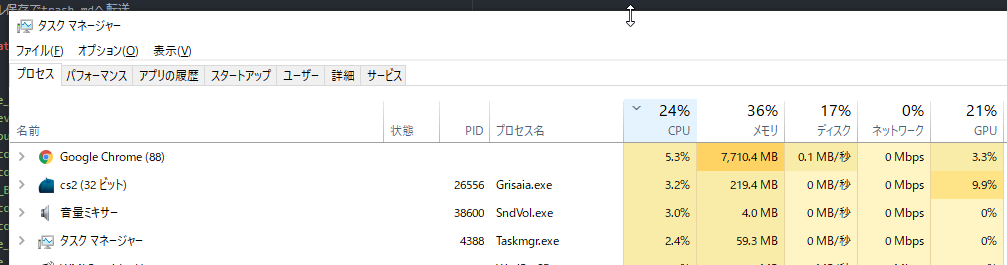
And looking at Task Manager, it’s peaceful now.
Looking at the above page, apparently this process is related to file I/O. I wonder why it eats up 50% of CPU. Hmm.
In my case, after 2-3 days, command line-related CPU usage gradually increases overall and eventually ends up like that. In that case, watch is probably the culprit.
watch -n 2.0 "cat \"${TIME_MANAGEMENT_DIR}/time_management_log.txt\" | awk '!/tmt-check/' | tail "I often run commands like this, so this might be the cause. Hmm, tail -f doesn’t allow for detailed filtering with awk and such.
[Addition] It’s easier to execute commands from Win-R
After going through the force termination process several times since writing the above article, the procedure has become somewhat refined, so I’ll introduce it.
You can quickly execute commands with the Win-R shortcut key. If no ConEmu or console windows are open, it’s even easier than opening cmd.exe and executing. Also, when you execute the bash kill command on ConEmu, survivors sometimes appear. It doesn’t close properly, so to speak.
taskkill /f /im conhost.exe