By opening Atom in different instances, you can use each with different environments such as settings and plugins. Also, Atom’s characteristic issue where text input becomes slow over time when using too much memory doesn’t matter if they’re different instances. Even if you have Atom open in multiple windows, if they’re the same instance (for example, if clicking File > Quit closes everything, they’re the same instance), memory is shared, so the slowness won’t improve.
When one Atom instance is frozen for some reason, you could use a different editor, but opening it in a different instance solves it.
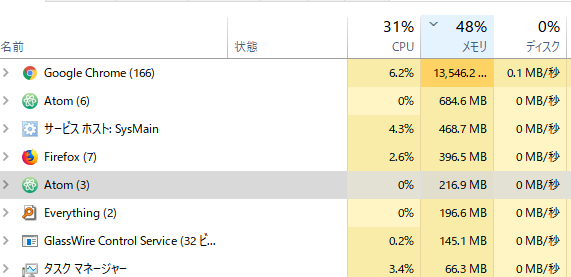
To open Atom with a different instance, edit the ATOM_HOME variable.
By default, this is a path like C:\Users\name.atom, but by changing this path, you can completely change the settings folder to load.
Atom is launched with cmd.exe. Note that defining the variable in PowerShell is meaningless.
set ATOM_HOME=C:\.atoms\.atom
atom
Running multiple instances of Atom - support - Atom Discussion
Addendum
Since I’m from a generation that doesn’t want to open cmd.exe every time, I wrote a WSL bash function.
mlatom(){

  : atom multi instance atom with cmd from WSL

  : <<< '
  e.g.
    mlatom
    mlatom "" "apm -v"
    mlatom "" "apm install something"
    mlatom 02
    mlatom 02 "apm install something"
  '

  cmd.exe /C "set ATOM_HOME=C:\.atoms\.atom${1} & ${2:-atom}"

}