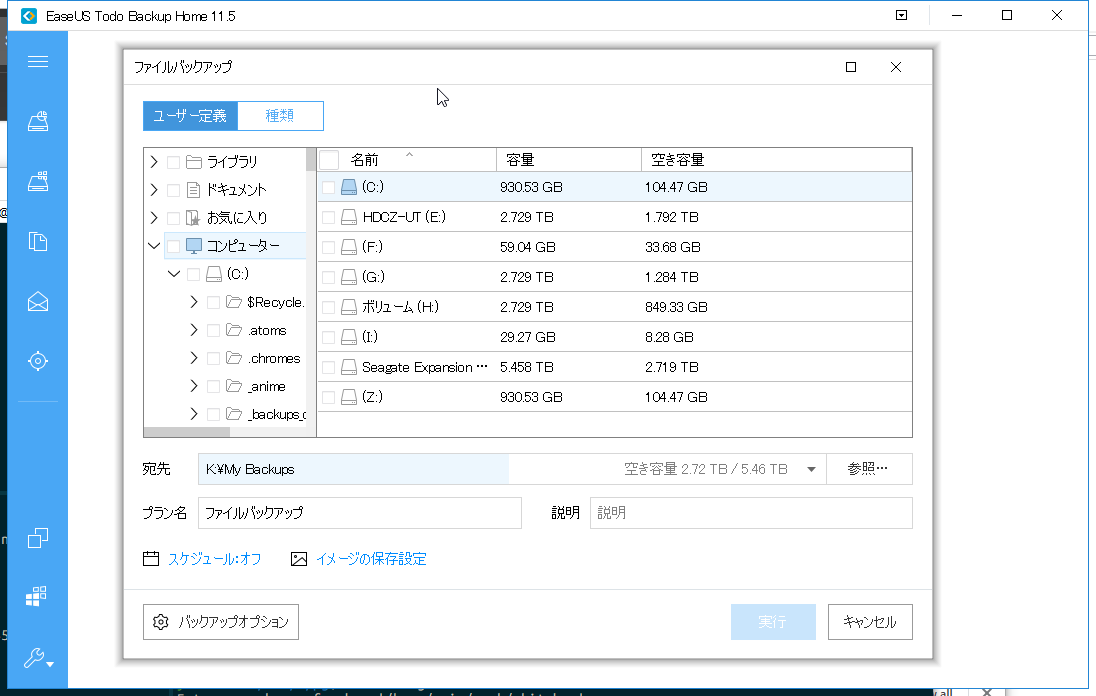
EaseUS Todo Backup Home is backup software that performs backups and recovery of files, data, and operating systems. In addition to general backup and recovery, it has various other utility tools.
Windows 10 has a full backup feature by default, but it’s not user-friendly and I don’t use it. I get the impression that few people actually use it. The file size is also large, and of course you can’t do things like differential backups, and as I’ll introduce later, you can’t do things like mounting either.
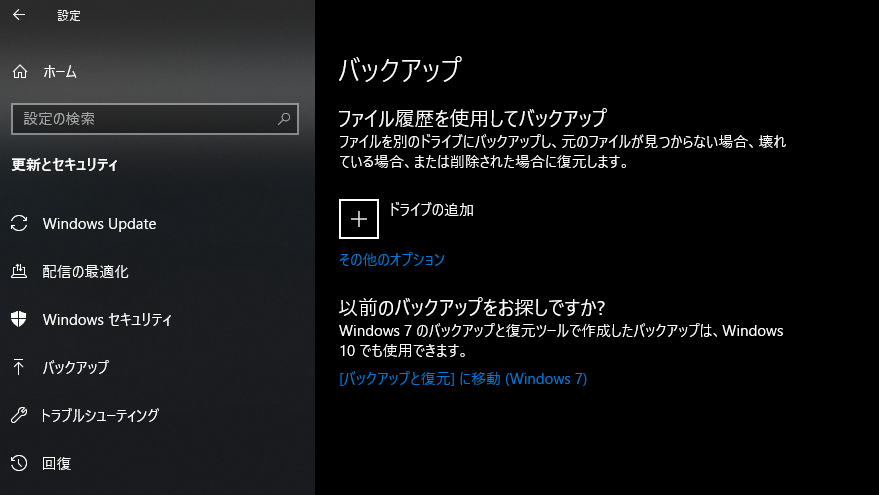
When data capacity is large, full backups every time become a burden. Considering the effort of restarting Windows each time, waiting nearly 10 hours, and preparing multiple large-capacity hard disks, it’s easier to use famous and reliable software like EaseUS Todo Backup Home that has differential backup and mount functionality, and it actually saves money too.
Types of Backups
There are three main types of backup formats:
full backup … Full backup incremental backup … Incremental backup differential backup … Differential backup
Full backup backs up everything, incremental backup backs up the portion of data that has relatively increased from the full backup data, and differential backup considers not only increased data but also decreased data.
If you want to reduce data volume, I think it’s good to do a full backup once, then stack versions by doing differential backups afterward.
Full Backup of Windows 10 System with EaseUS Todo Backup Home
Click “System Backup” to move to the system backup settings screen.
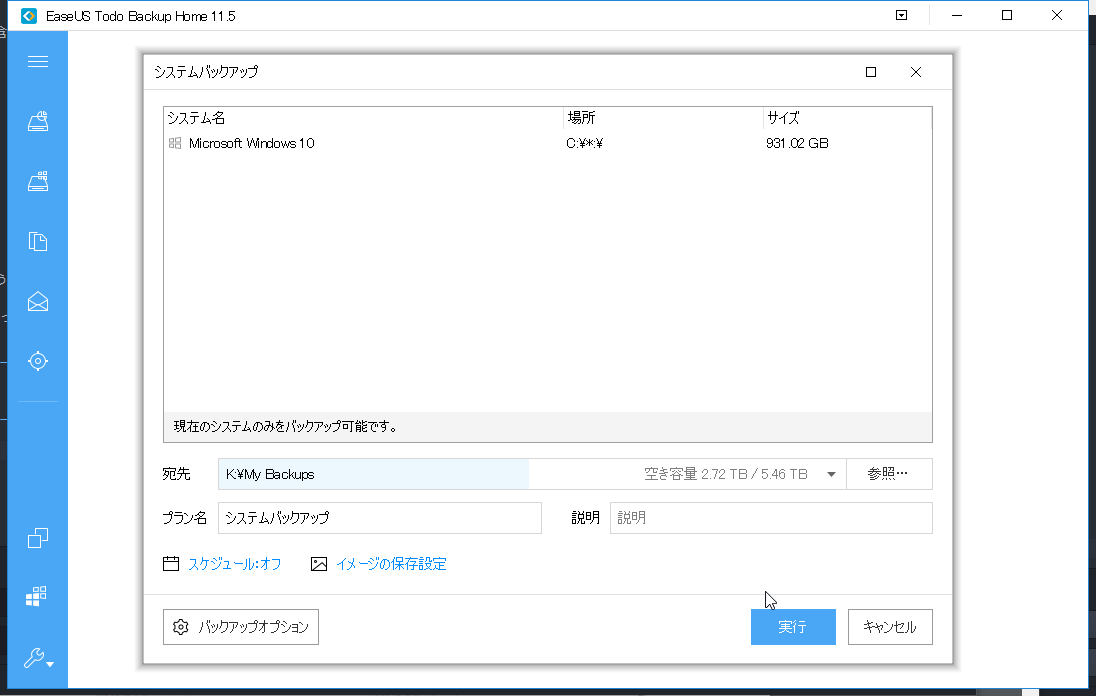
From “Backup Options” you can also set up password protection and encryption.
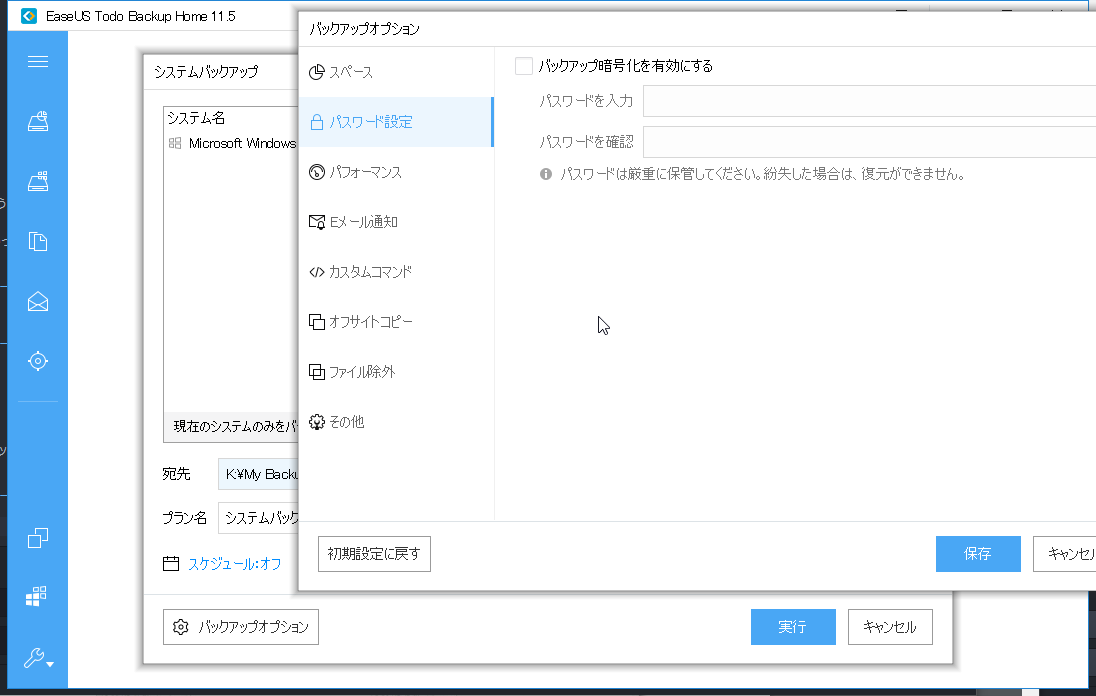
Now, in my case I have approximately 1TB capacity, but EaseUS Todo Backup Home compresses this quite a bit to make it smaller. Quite helpful.
yuis ASUS /mnt/c/pg$ df | ag C:
C:              931G  838G   93G  91% /mnt/c
It compressed it down to 600GB.
yuis ASUS /mnt/c/pg/20190424211942$ du -h '/mnt/k/My Backups/システムバックアップ(1)'
621G    /mnt/k/My Backups/システムバックアップ(1)
Also, the full backup took about 6 hours. During that time, about 40% of CPU was used, and I felt some heaviness, but it wasn’t so jerky that I couldn’t use it, and I could do normal work while backing up. It’s good that you can do stress-free backups.
Differential Backup of Windows 10 System with EaseUS Todo Backup Home
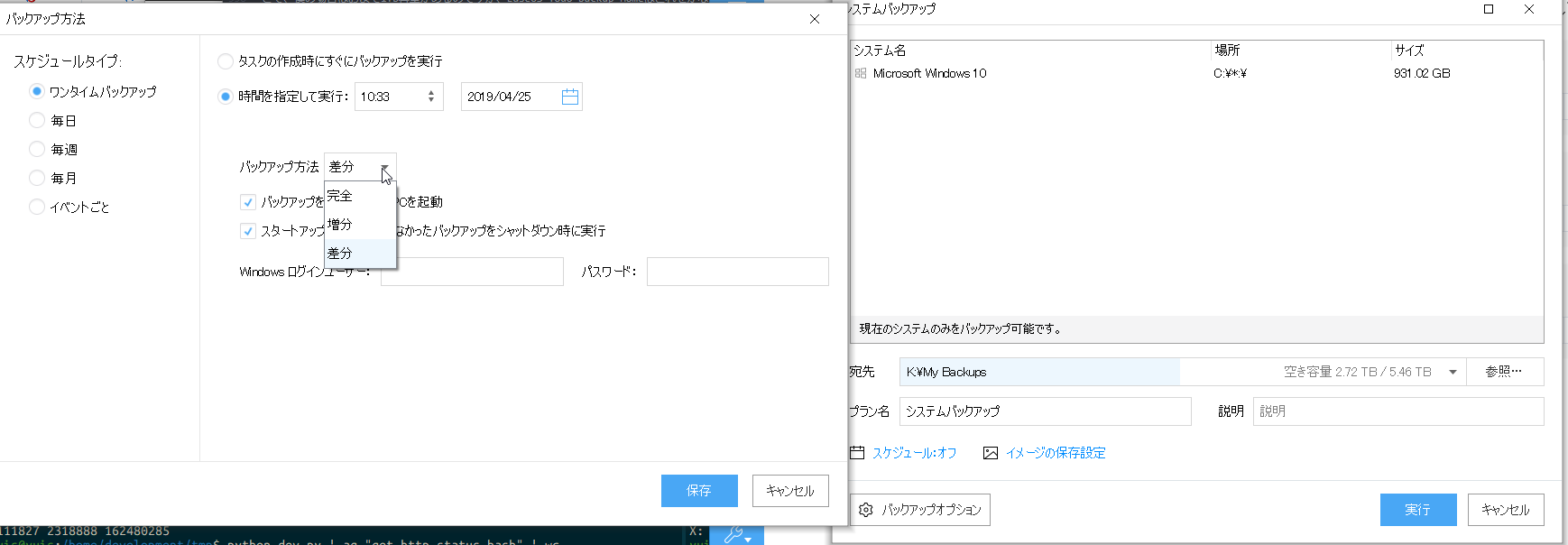
When performing differential or incremental backup instead of full backup with EaseUS Todo Backup Home, you can select it by choosing “Schedule”.
Recover Windows 10 System with EaseUS Todo Backup Home
To recover the system, just click “Restore”.

Create Boot Media
For backup images created with EaseUS Todo Backup Home, in addition to recovering by operating from a running Windows, there are methods of booting via USB to launch WinPE for recovery, and using a pre-OS system that adds the EaseUS Todo Backup Home screen before the usual startup Windows to enable control.
While it’s fine as long as the Windows system doesn’t break, when the system breaks it may become impossible to boot at all. For such cases, set up and prepare in advance so you can use pre-OS or WinPE to load EaseUS Todo Backup Home backup image data.
WinPE … Operating system for installing, deploying, and recovering Windows 10
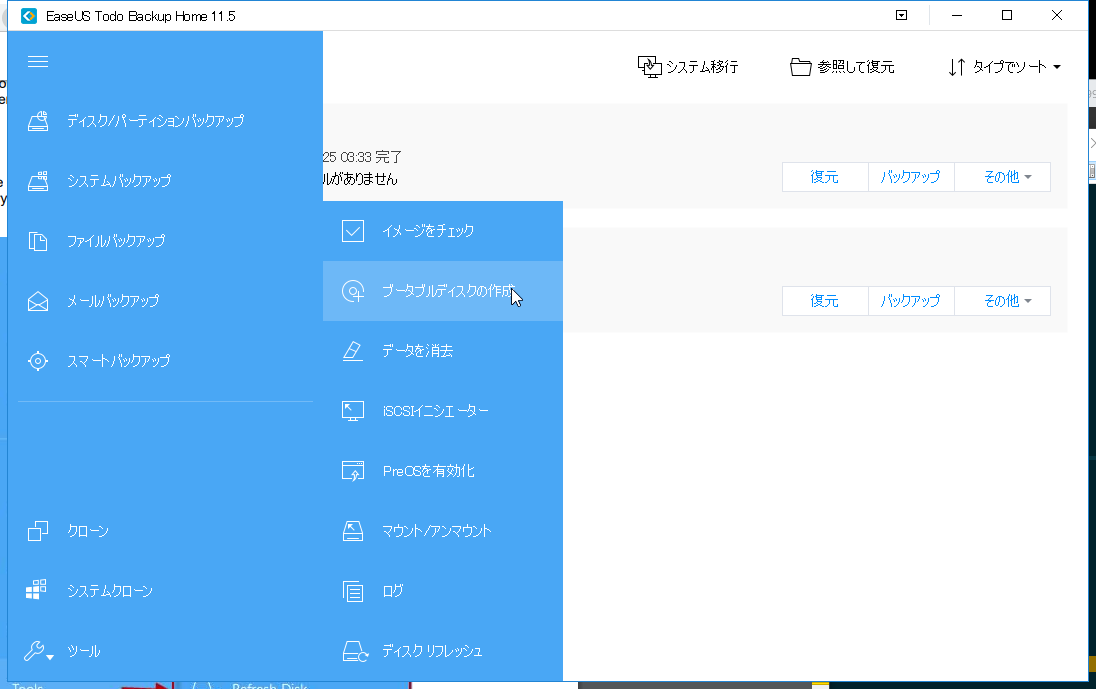
Create Emergency Disk ... EaseUS Todo Backup allows users to create an emergency USB disk or CD/DVD. It is indispensable when Windows system fails to boot / Creates boot media essential when Windows system cannot startWindows PE (WinPE) for Windows 10 is a small operating system used to install, deploy, and repair Windows 10
This item is called “Create Emergency Disk” in English but “ブータブルディスクの作成” (Create Bootable Disk) in Japanese.
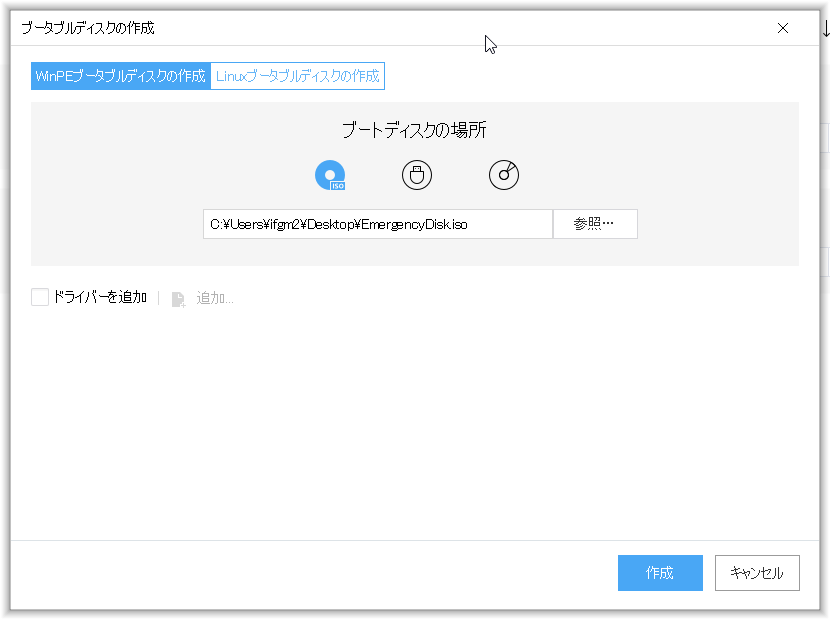
You can select ISO file, USB, or CD-R image. If it’s ISO data, it’s convenient because you can easily back it up to a remote server.
Mount Backup Image
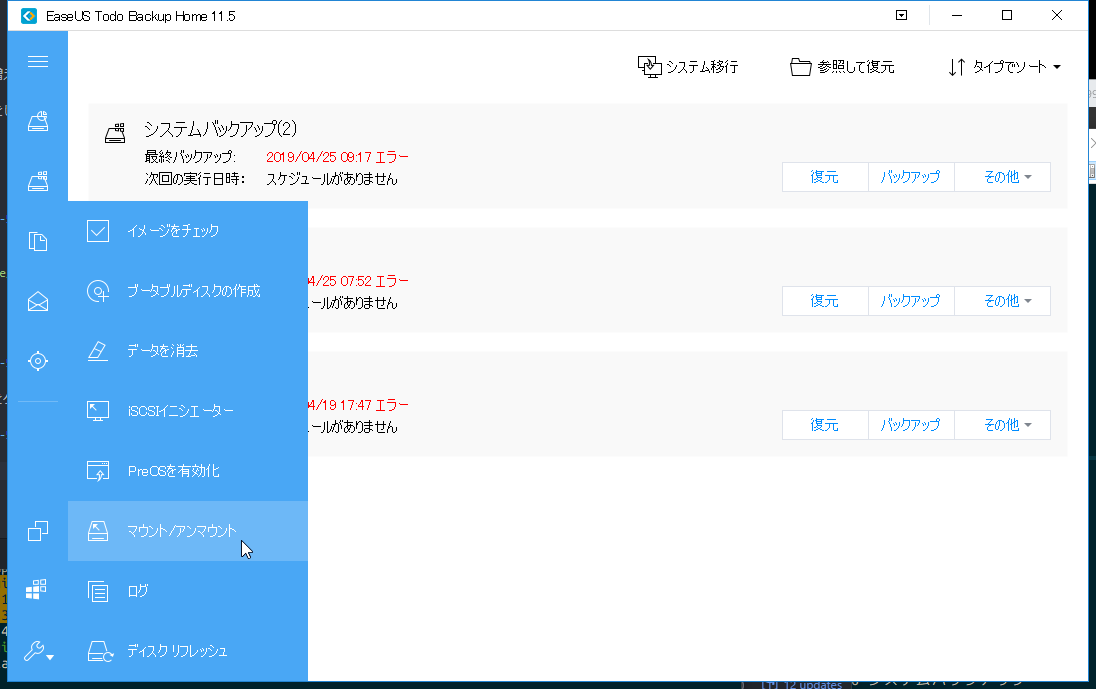
From EaseUS Todo Backup Home > Tools > Mount, you can mount the backed up image. By mounting, you can easily check files in the backup image, and you can also use it to verify that EaseUS Todo Backup Home is functioning properly.
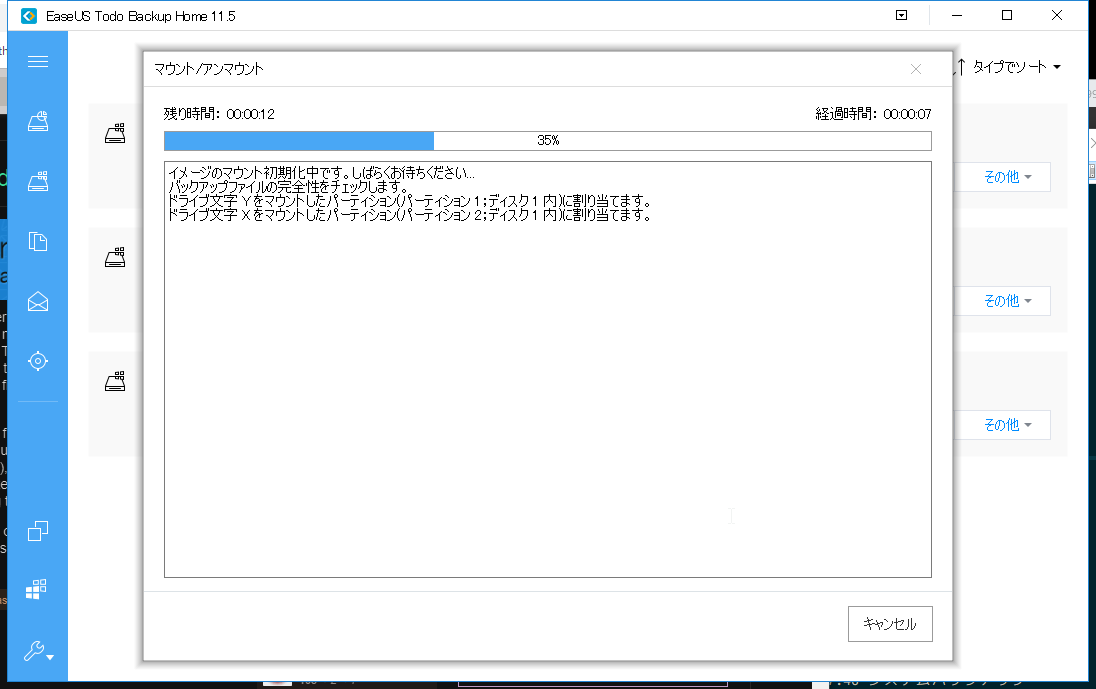
I compared file sizes between the current version and the version at the time of backup.
yuis ASUS /mnt/c/pg$ wc /mnt/x/google_drive/note/tmp.md /mnt/c/google_drive/note/tmp.md
  132   212  4283 /mnt/x/google_drive/note/tmp.md
  332   661 13388 /mnt/c/google_drive/note/tmp.md
I also checked the contents, and they were both correct.
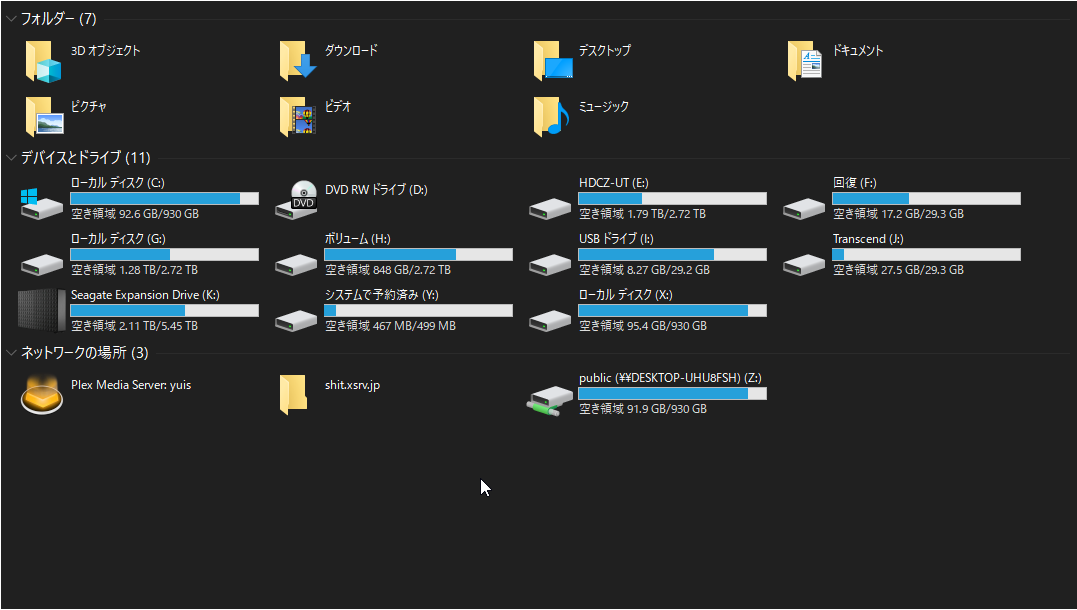
Can applications also launch? Let me try clicking the Opera browser exe file on the X drive.
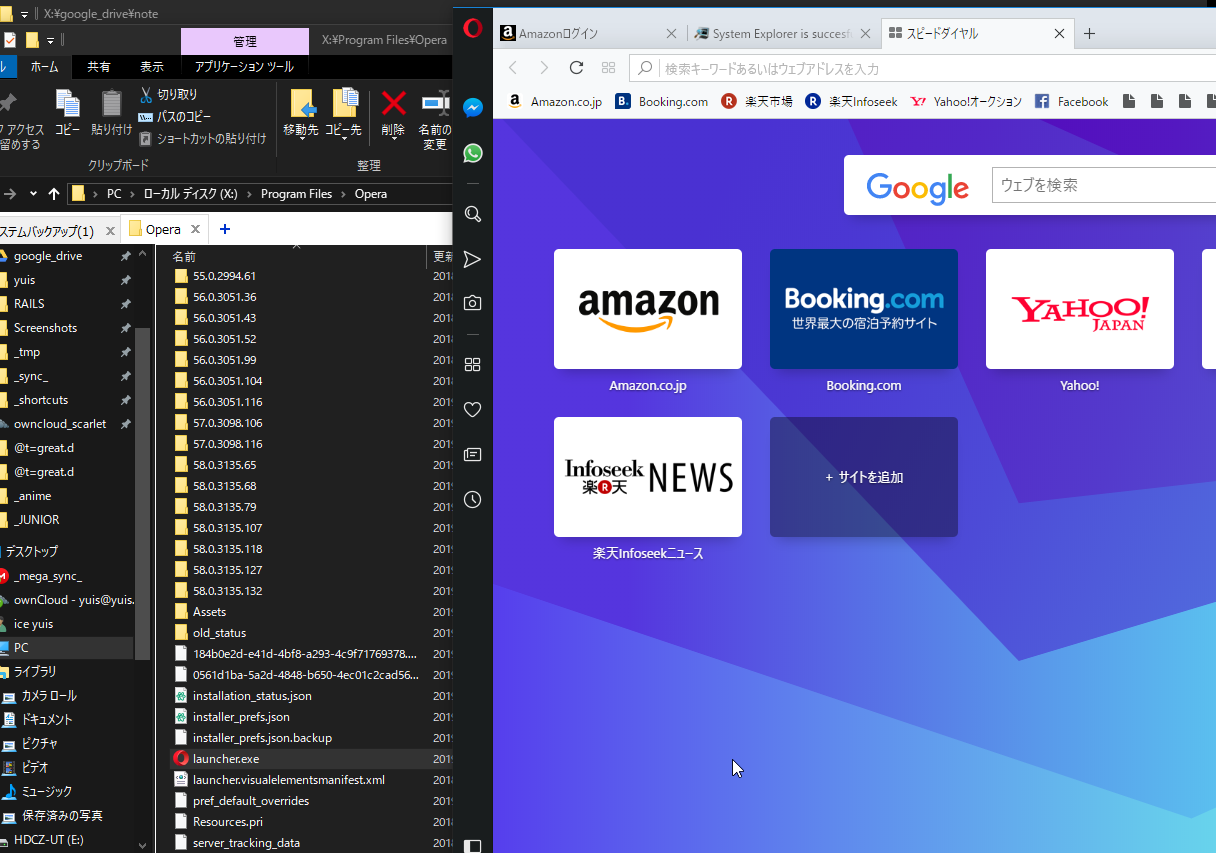
It opened.
After Using EaseUS Todo Backup Home
Until now, I wasn’t very interested in system-scale backups. That’s because system backups only had an image of being troublesome and time-consuming.
I do back up some truly important files to remote servers to ensure they’re never lost, but this still can’t handle when Windows itself dies, and other multiple files, especially installed software data, would be sacrificed. Since many installed software also have internal settings, this isn’t simply a matter of text file backups.
What I felt most after trying EaseUS Todo Backup Home, besides convenient features like mounting, is probably ease of use. Being able to do system backups with a few clicks and restore them with one click is simple and clear.
EaseUS Todo Backup Home also has a free version, so how about trying it once before the paid version?