I’ll introduce a program that notifies a Windows 10 PC when an Android smartphone battery is low.
I wrote this because it seemed like there might be demand for it.
It sends an audio notification on the PC when the Android battery reaches 15%.
Overall Flow
Each individual task isn’t difficult, but as usual there are many technologies used, so it may take time depending on the situation, but if you can do this, you can apply it to other Android data exchanges, so please give it a try.
- When Android battery gets low, make a web request with IFTTT
- Receive it with an Ubuntu Sinatra server and write any command to a file
- Execute the file text as a command. (popup notification; tts; etc)
- Get a WiFi router that can do port forwarding.
The Best WiFi Router Derived from Testing 4 Routers After Optical Line Construction
WSL
- As Someone Who’s Been Using WSL (Windows Subsystem for Linux) Since the Beginning, I’ll Explain WSL’s Benefits for Linux and Programming Beginners
- WSL bash on ubuntu on windows Installation Procedure
Let’s create a Ruby environment
We’ll run Sinatra with Ruby. It can be done in 3 minutes, so let’s quickly set up the environment.
sudo apt update ; sudo apt install build-essential patch zlib1g-dev liblzma-dev ruby{,-dev} -y ; sudo gem install bundler

mkdir -p /mnt/c/pg/ruby_dev && cd $_

sudo bundle init
vim Gemfile
sudo bundle install
vim Gemfile
# add
gem "pry"
gem "sinatra"
Procedure
- Set up port forwarding on your WiFi router
- Create an applet in IFTTT
this ... android battely
that ... webhooks

title(example) ... If Battery drops below 15%, then get request to server
URL(example) ... http://220.247.111.111:8005/android-battely
method ... get
type ... json
body ... (blank)- Set up IFTTT on the Android side
- Mount a Windows folder to enable file synchronization
sudo mount -t cifs //192.168.0.167/_sync_ ~/share -o user=user,pass=pass,dir_mode=0777,file_mode=0777- How to Mount Windows 10 Shared Folder in Ubuntu 18.04
- Mounting (Syncing) Windows 10 Share Folder in Ubuntu 16.04
We’ll implement later: storing text to execute as commands in command.txt in the share directory, and periodically reading and executing it with WSL.
This is because even if you execute commands directly on the server, sound-related processes won’t work because the process is a subprocess(?), so you need to go through a file.
- Run Sinatra
Encoding.default_external = ‘UTF-8’
get “/android-battely” do
# binding.pry

stdout, stderr, statusCode = Open3.capture3( %( bash -c " host #{request.ip} | awk '{print $5}' | awk '/amazonaws.com|ifttt.com/' || echo '' " ) )
if stdout.to_s.strip.empty? then redirect to('/404') end

# puts "ok"
puts @body = request.body.read

    stdout, stderr, statusCode = Open3.capture3( %( bash -ic "printf 'tts \\"android battery low\\"' > /home/yuis/share/command.txt || echo '' " ) )

puts stdout, stderr, statusCode
end
```bash
sudo bundle exec ruby dev.rb -o 0.0.0.0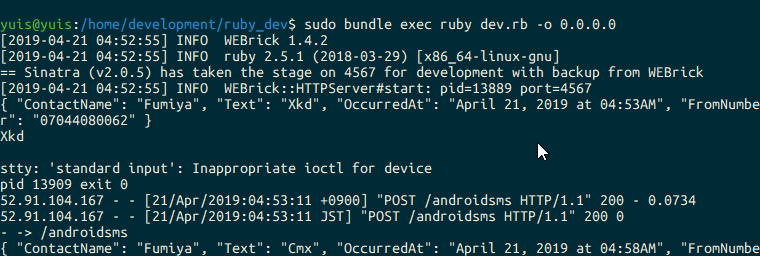
Simple explanation …
stdout, stderr, statusCode = Open3.capture3( %( bash -c " host #{request.ip} | awk '{print $5}' | awk '/amazonaws.com|ifttt.com/' || echo '' " ) )
if stdout.to_s.strip.empty? then redirect to('/404') end
When you publish a server, you get quite a bit of malicious access from hackers. If you leave this alone, at worst your PC could be hacked or broken, or in this example at least you’ll get notifications all day.
So, to filter such things, with Sinatra it’s troublesome, but it seems good to redirect to a 404 page. We’ll block all access that’s not from IFTTT. Since IFTTT is AWS, we’ll only allow that.
Even with this, AWS is quite wide-ranging, so you might still get strange access. In that case, you can add parameters to the GET request on the IFTTT side as a token and authenticate on the server side for certainty.
printf 'tts \\"android battery low\\"'You need to escape in two stages, Ruby and Bash, so use two backslashes.
- Define the function to use on the WSL side
tts. This reads text aloud via PowerShell by doing tts text.
TTS (text-to-speech) with PowerShell
Execute the following in bash or put it in .bashrc.
tts ()
{
    /mnt/c/WINDOWS/System32/WindowsPowerShell/v1.0/powershell.exe -  <<EOF
tts "${1}"
EOF

}
- Run a script on the WSL side that periodically monitors the file containing command text
echo -ne ”$(isodate)\tNothing updated on the clipboard.\033[0K\r”
[[ -s “$SHAREDDIR/command.txt” ]] && { eval ”$(cat “$SHAREDDIR/command.txt”)” ; > “$SHAREDDIR/command.txt” ; printf “A command excuted.” ; }
sleep 2s done

<ul>
<li>Test if it actually works</li>
</ul>
Please comment if you have any problems.